How to Remove Unwanted Text from an Image Using AI
In this guide
Have you ever taken a great photo only to notice unwanted text, a watermark, date stamp, sign, or random writing covering part of it? Removing these elements manually can be frustrating, especially when you need to preserve the original background and make the edit look natural.
Modern AI photo editing tools have made this process much easier. Instead of carefully selecting pixels and using complicated editing software, you can use AI to identify unwanted text, remove it and intelligently recreate the area behind it.
Whether you are editing personal photos, preparing marketing visuals, cleaning product images, or creating content for social media, AI can help you get a cleaner result in just a few steps.
Why Remove Unwanted Text from an Image?
Unwanted text can make an otherwise attractive image look distracting or unprofessional. A date stamp on a vacation photo, an old caption on a product image or random writing in the background can take attention away from the main subject.
Removing unnecessary text can help you:
- Create cleaner and more professional images
- Enhance the visual appeal of your social media content
- Prepare product photos for marketing
- Restore older or scanned photographs, much like you would when you restore old family photos
- Remove accidental text overlays
- Make backgrounds look more natural
- Repurpose existing images for new projects
AI makes this process particularly useful because it can analyze the surrounding pixels and generate a replacement area that blends with the rest of the image.
How AI Text Removal Works
AI-powered image editors typically use a combination of object detection, image segmentation, and generative technology.
First, the AI identifies the area you want to edit. You can usually mark the unwanted text with a brush, selection tool or similar editing feature.
Next, the AI examines the surrounding image. It looks at elements such as colors, textures, patterns, lighting and shapes to understand what should appear behind the text.
Finally, the AI reconstructs the selected area. Instead of simply blurring or covering the text, modern tools rely on AI inpainting to generate a replacement that matches the surrounding background.
This is why AI-powered removal can produce more natural-looking results than traditional cloning or cropping methods.
Step-by-Step: Remove Unwanted Text from an Image
The process is generally simple, even if you have little or no photo-editing experience.
Step 1: Choose Your Image
First, select the photo you would like to modify. Use the highest-quality version available because a larger and clearer image generally gives an AI editor more information to work with.
For example, if you want to clean up an old photograph, upload the original scan instead of a compressed screenshot.
Step 2: Upload the Image to an AI Editor
Open an AI-powered image editor and upload your photo. Look for a feature designed for object or text removal.
Many modern editors are browser-based, so you do not necessarily need professional desktop software.
Step 3: Select the Unwanted Text
Use the brush, selection or erase tool to highlight the text you want to remove.
Try to cover the complete text, including shadows or outlines. If only part of the letters is selected, small remnants may remain after processing.
For better results, avoid selecting large areas unnecessarily. A precise selection gives the AI a better understanding of what needs to be replaced.
Step 4: Let AI Reconstruct the Background
Once your selection is ready, start the removal process. The AI will analyze the surrounding area and generate a replacement.
Depending on the complexity of the background, the result may be ready within seconds.
Simple backgrounds such as walls, skies, floors and solid colors are usually easier to reconstruct. Detailed backgrounds containing faces, buildings, objects or repeating patterns may require additional editing.
Step 5: Review the Result
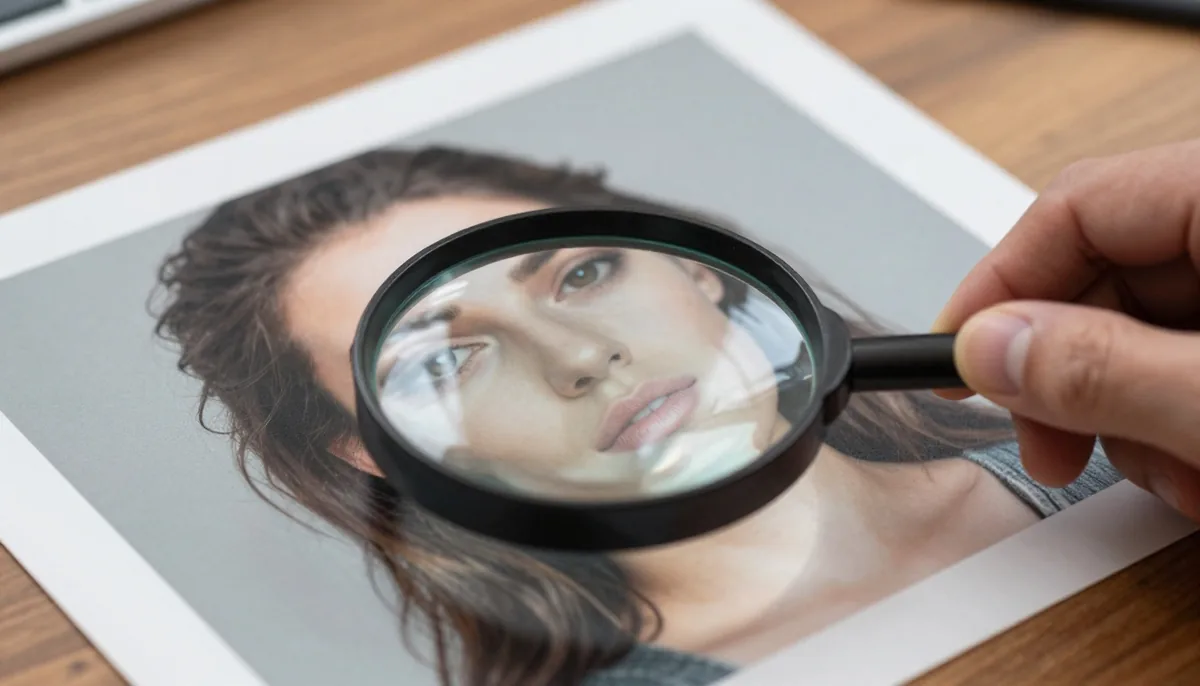
Do not immediately save the first result. Zoom in and inspect the edited area carefully.
Look for:
- Remaining letters
- Repeated patterns
- Strange textures
- Distorted objects
- Unnatural shadows
- Visible edges around the edited area
If something looks incorrect, undo the edit and make a smaller or more precise selection.
Step 6: Download the Clean Image
Once the result looks natural, export your edited image in a suitable format. PNG can be useful when maintaining image quality is important, while JPG is often convenient for websites and social media.
Tips for Getting Better AI Editing Results
Knowing how to use the tool is only part of the process. Your selection and source image can significantly affect the final result.
Use a Precise Selection
Avoid selecting a huge portion of the image when you only need to remove a few words. Smaller selections give the AI less area to reconstruct and can help preserve nearby details.
Keep Nearby Details Intact
If the unwanted text overlaps an important object, remove it carefully. For example, text placed over clothing, hair or architectural details may require multiple attempts.
Work in Small Sections
If an image contains several separate pieces of unwanted text, consider removing them individually instead of selecting everything at once.
This gives you greater control and makes it easier to correct individual areas.
Use High-Resolution Images
AI tools work best when there is sufficient visual information. A sharp, high-resolution image generally provides better texture and detail than a heavily compressed photo.
Compare Before and After
Always compare the original and edited versions. Sometimes an AI edit can look acceptable at normal size but reveal imperfections when you zoom in.
What Types of Text Can AI Remove?
AI text removal can be useful for many different situations.
Watermarks and Overlays
If you are editing an image you have the rights to use, AI can help clean up unwanted text overlays and other visual elements.
Date and Time Stamps
Older cameras and mobile apps sometimes automatically place dates on photographs. AI editing can help restore the area where the stamp appeared.
Social Media Text
Screenshots or reused designs may contain captions, labels or other text that you no longer need.
Signs and Background Writing
Text appearing on walls, boards, packaging or other background elements can sometimes be removed while keeping the surrounding scene intact.
Product Image Text
When preparing authorized product photography for a new campaign, you may need to remove outdated labels or promotional text before adding updated information.
When AI Text Removal May Not Work Perfectly
Although AI editing is powerful, it is not magic. Some images are more difficult than others.
Removing text from a plain background is usually straightforward. However, text covering a person's face, intricate artwork, detailed architecture or complex patterns can be challenging.
Large text covering important objects may also leave visible reconstruction artifacts.
In these cases, try editing the area in smaller sections. You may also need to combine AI removal with traditional editing techniques for the best result.
AI vs. Traditional Text Removal
Traditional photo editors often require tools such as clone stamps, healing brushes, masks and content-aware fills. These methods can provide excellent control, but they may take considerable time to master.
AI editing focuses on simplifying the process. Instead of manually deciding how every pixel should be replaced, the AI analyzes the image and generates an appropriate result.
This makes AI especially useful for beginners, marketers, content creators and anyone who needs quick edits without learning advanced editing software.
Creative Uses Beyond Simple Text Removal
AI image editing can do more than clean up photographs. The same technology can help you prepare images for new creative projects.
You can clean an old image before adding new typography, remove distracting elements from marketing materials, prepare photos for presentations or create cleaner visuals for online stores.
The key is to use AI as an editing assistant rather than relying on it blindly. Always review the final image and make adjustments when necessary.
Is AI Text Removal Safe to Use?
AI editing should be used responsibly. You should have permission to modify the image and avoid removing copyright notices, ownership information or other identifying elements from content you do not own.
For commercial work, always check the licensing terms of the original image and the AI editing service you use.
AI is most useful when it helps you improve content that you are authorized to edit.
Final Thoughts
AI has changed the way people approach everyday photo editing. Tasks that once required detailed knowledge of professional editing software can now be completed with simple selections and automated processing.
Whether you are cleaning up a personal photograph, preparing a product image or creating content for social media, removing unwanted text from an image with AI can be a fast and practical solution.
For the best results, start with a high-quality image, make precise selections, work in smaller areas when necessary and always inspect the final result before publishing it.
The goal is not simply to erase text. It is to make the final image look as though the unwanted element was never there.
Try unlimited AI photo editing
Run every AI tool as much as you want, right in your browser.