How to Remove a Background from an Image with AI (No Photoshop)
In this guide
What removing a background actually means
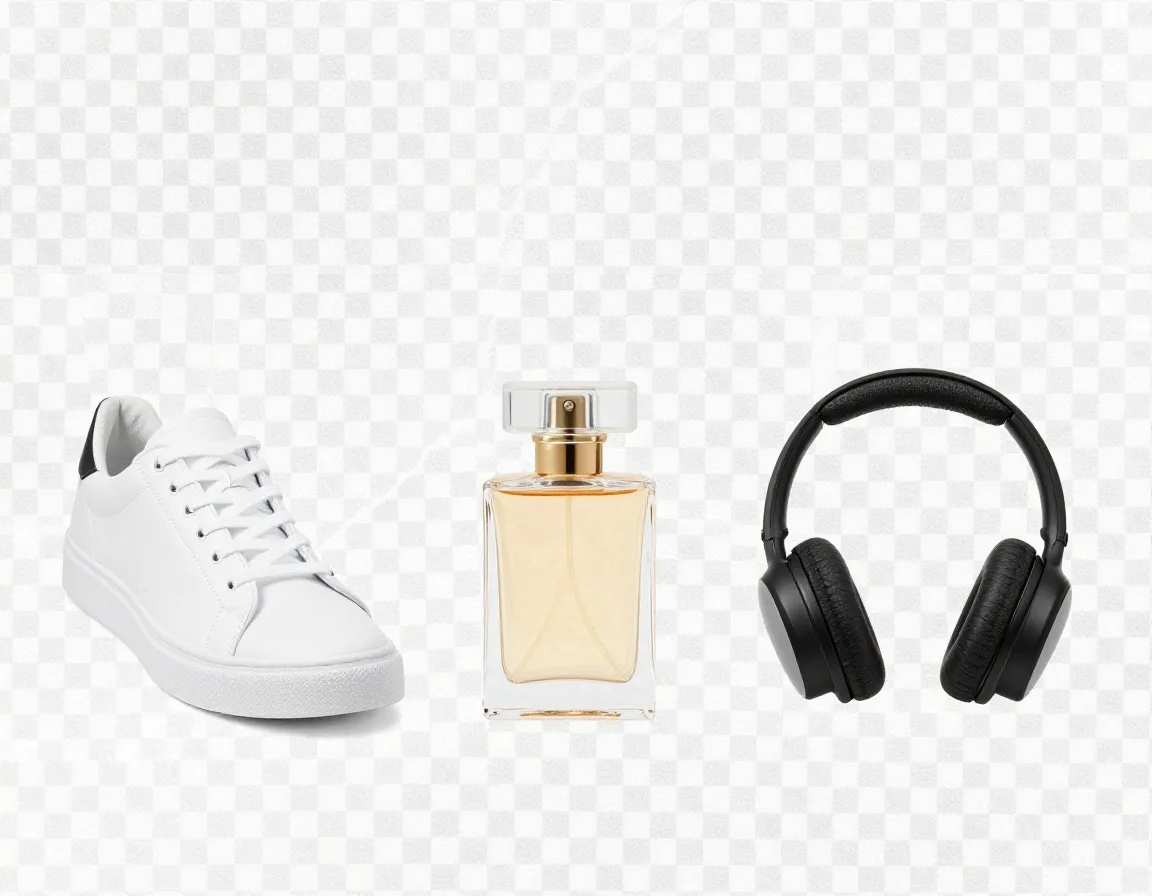
Removing a background means separating the main subject of a photo from everything behind it. The subject stays, the rest becomes transparent or gets replaced. When you export the result as a PNG, the empty area is saved as true transparency, so you can drop the cutout onto any color, pattern, or new scene without a white box around it.
You will hear a few words for the same idea. A cutout is the isolated subject. A transparent PNG is the file format that preserves the empty area. Knockout and masking are older terms from print and design software. They all describe the same goal, which is a clean edge between what you keep and what you remove.
The reason this matters is reuse. A photo with a busy background only works in one place. A clean cutout works everywhere, because you control what sits behind it. That single change opens up product listings, thumbnails, profile pictures, and design layouts that would otherwise need a reshoot.
Why people remove backgrounds in the first place
The most common reason is consistency. If you sell products, ten photos shot on ten different surfaces look messy on a storefront. Put every product on the same clean white or transparent background and the whole catalog suddenly looks like it belongs together. Many marketplaces also require a plain background, so this is not just taste, it is often a rule.
Another reason is focus. A distracting background pulls the eye away from the subject. Removing it forces attention onto the person or product, which is exactly what you want for a headshot, an ad, or a thumbnail competing for clicks.
The last reason is flexibility. Once a subject is on its own, you can place it on a brand color, a gradient, a seasonal scene, or a graphic layout. You are no longer stuck with wherever the photo happened to be taken.
AI cutout versus manual selection in Photoshop
The old way was manual. You would zoom in, trace the subject with a pen or lasso tool, refine the edge, and fight with every strand of hair. For a simple shape it took a few minutes. For a person with flyaway hair or a fuzzy sweater, it could take much longer, and the result still looked cut out if you rushed it.
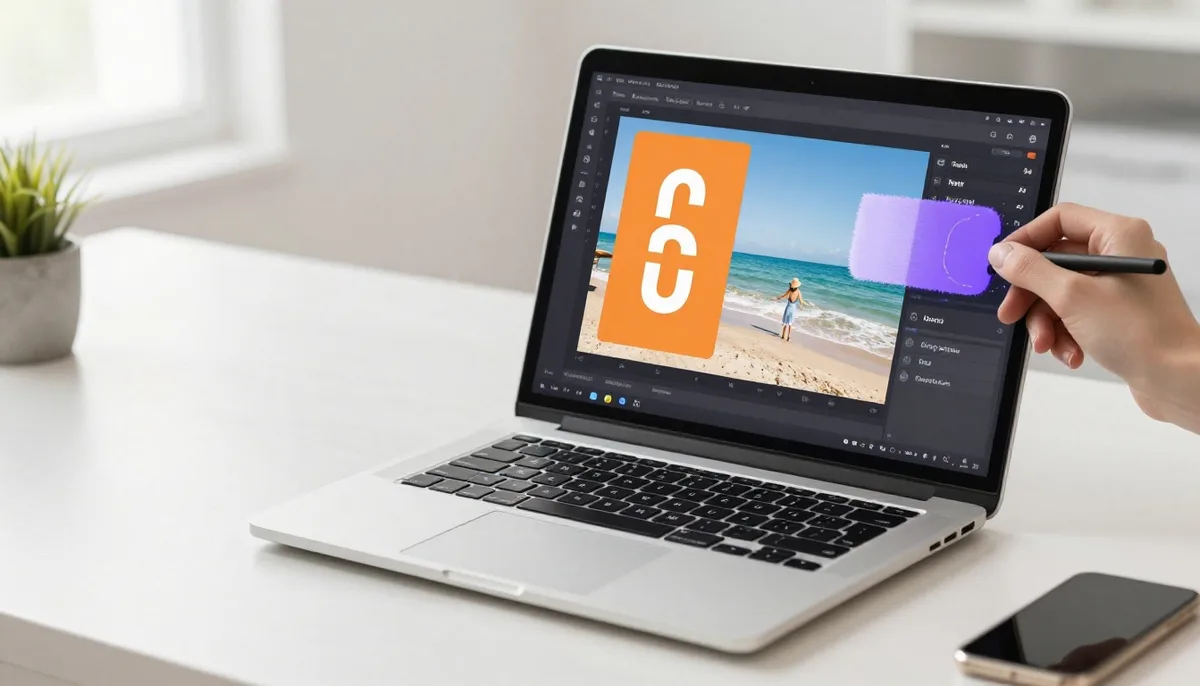
AI flips the effort. Instead of you tracing the edge, a model looks at the whole image, decides which pixels belong to the subject, and generates the mask for you. What took minutes of careful clicking now happens in a few seconds, and you do not need to own or learn a heavy desktop program.
The honest tradeoff is control. Manual selection gives a skilled retoucher total command over every pixel, which still matters for high-end commercial work. AI gives almost everyone a clean result fast, with far less skill required. For the vast majority of everyday needs, the AI result is more than good enough, and you can always touch up the rare problem edge afterward.
How the AI figures out what to keep, in plain words
Think of it as pattern recognition. The model has seen a very large number of images where the subject and background were already separated. From that, it learned what subjects tend to look like, where edges usually fall, and how foreground objects differ from what sits behind them. When you upload a new photo, it applies that learned sense to guess the boundary.
Internally, it produces a mask, which is a black and white map of the image. White means keep, black means remove, and the soft gray in between handles fuzzy or semi-transparent areas like hair tips or glass. That gray zone is what makes a good cutout look natural instead of harshly chopped out.
It helps to remember the model is making an educated prediction, not reading your mind. It does not know that the coffee cup in the corner is important to you. It judges based on what usually counts as the subject. That is why clear, well lit photos with an obvious main subject give the cleanest results, and cluttered photos with several competing objects are harder.
Step by step: remove a background and export a transparent PNG
Open the Background Remover in your browser. There is nothing to install and no desktop software to set up. You sign in with Google, and every account gets free daily generations so you can try it before deciding on anything.
Upload your image. Drag a file in or pick one from your device. A clear photo with a single obvious subject and decent lighting will give you the best starting point, so reach for that kind of shot when you have the choice.
Let the AI process it. In a few seconds you get back your subject on a transparent background. Look closely at the edges, especially around hair, fingers, and any thin shapes, since those are the spots where a model is most likely to need a second look.
Download the result as a PNG. PNG is the format that keeps transparency, so the removed area stays empty instead of filling with white. Save a JPG only if you have already placed the subject on a solid background, because JPG cannot store transparency. If you plan to put your cutout on a new scene next, keep the PNG.
Adding a new background after the cutout
A transparent PNG is a starting point, not always the finish line. Once the original background is gone, you can place the subject onto anything you like. The simplest move is a solid color, which is what most product listings and clean headshots use. Drop the cutout onto white, a brand color, or a soft gradient and you are done.
For something richer, layer the cutout over a real scene, a textured backdrop, or a graphic design. Because the area around the subject is truly empty, the new background shows through cleanly with no leftover halo from the old photo.
Pay attention to two things so the composite looks believable. First, match the lighting direction, since a subject lit from the left looks wrong on a background lit from the right. Second, watch the scale, because a person who is too large or too small for the scene gives the edit away instantly. Get those two right and most viewers will never guess the background was swapped.
Tips for clean edges, including tricky hair
Start with the best input you can. Good lighting, a subject that contrasts with its background, and a sharp in-focus shot all make the AI's job easier. A blurry low-light photo with the subject blending into the background is the hardest case, and no tool fully fixes a weak source.
Hair and fur are the classic problem areas because the edge is not a clean line, it is hundreds of fine strands. AI handles this far better than manual tracing, but you will still get the most natural result when the hair stands out clearly against the background. Wild flyaway strands against a busy backdrop are where even good tools struggle.
If you plan to place the cutout on a dark background, check the edges against dark first, and if it is going on light, check against light. A faint rim of leftover background color is much easier to spot on a contrasting surface, and catching it early saves you a redo. For semi-transparent things like veils, glass, or smoke, expect a softer result, since those areas are genuinely partway between keep and remove.
Common mistakes to avoid
The biggest one is saving as JPG when you wanted transparency. JPG flattens the empty area to white, so your careful cutout arrives with a white rectangle around it. Export as PNG whenever you still need the background to stay empty.
The second is expecting a perfect result from a poor photo. If the subject and background are nearly the same color, or the shot is soft and underexposed, the AI has little to work with. When you control the camera, shoot with separation in mind, because a better input beats any amount of cleanup.
A third mistake is ignoring the edges after processing. Most cutouts are clean, but it only takes a glance to catch a stray patch or a chewed-up hair edge. Zoom in before you publish, especially for product photos and headshots where edge quality is on full display. The last common slip is upscaling a tiny image and expecting it to hold up, since starting larger and sharper is always better than enlarging a small file. If your source is low resolution, run it through AI Upscale before the cutout so the model has more detail to work with.
Real use cases where this saves real time
Product photos and e-commerce are the most obvious. Shoot once, remove the background, and place every item on a consistent surface across your whole store. This alone can make a catalog look professional without a studio or a photographer on call.
Profile pictures and headshots are another. Swap a cluttered home background for a clean one and a casual photo turns into something you can use on a resume, a team page, or a social profile. For thumbnails on video and articles, a crisp cutout of a person or product on a bold background is what makes the image pop in a crowded feed.
Logos and graphics round it out. If you only have a logo on a white square, removing that white gives you a transparent version you can lay over any color or photo. Designers, marketers, and small business owners all hit this need constantly, and doing it in the browser means no license and no learning curve. You can browse the rest of the lineup on the all tools page.
Honest notes on limits and responsible use
No background remover is flawless. Fine hair against a busy backdrop, transparent objects, motion blur, and subjects that blend into their surroundings are genuinely hard, and you may need a quick manual touch-up on the occasional edge. Setting that expectation up front saves frustration. The tool is fast and clean for the great majority of photos, not a guarantee of perfection on every single one.
There is also a responsibility side once you start swapping backgrounds. Putting a real person into a place they never were, or making it look like a product was photographed somewhere it was not, can mislead people. For listings, ads, and anything official, keep the edit honest, since a misleading background is misleading no matter how clean the cutout is.
Finally, use photos you have the right to use. Removing the background from someone else's product shot or a stranger's portrait does not make the underlying image yours. Stick to your own photos or images you are licensed to edit, and you stay on solid ground.
Try unlimited AI photo editing
Run every AI tool as much as you want, right in your browser.