AI Image Editor
Upload an image, describe edits
Drag & drop, or press Ctrl/⌘+VChoose a photo or use your camera
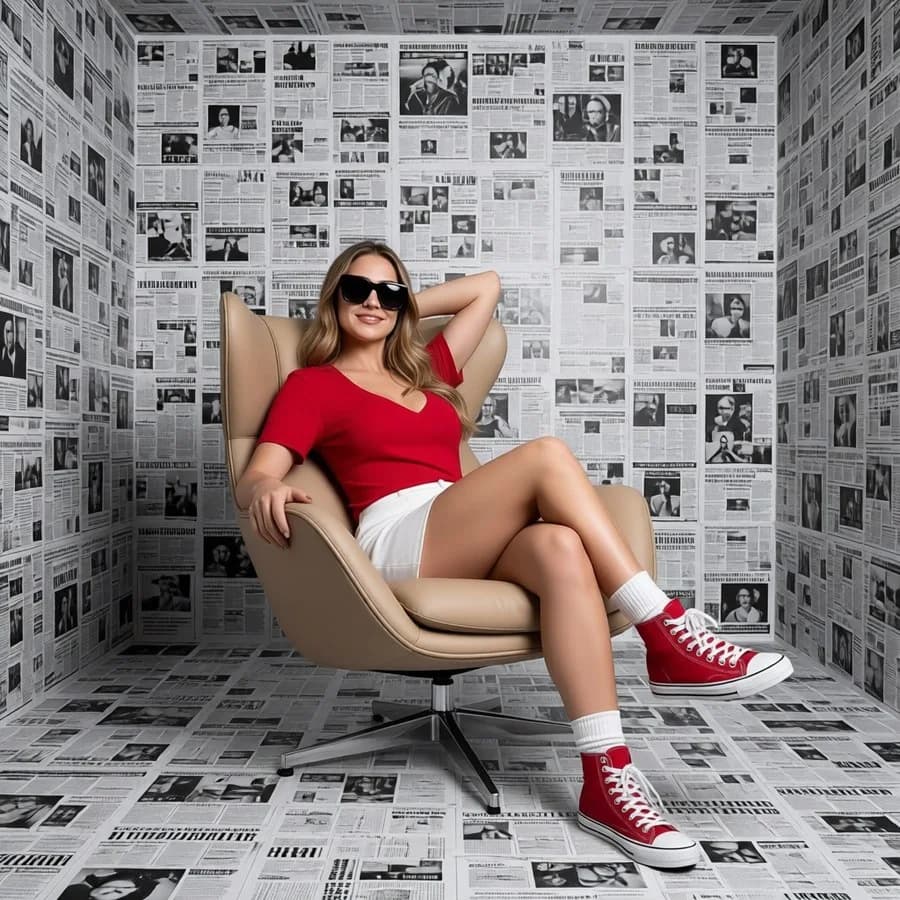 After
After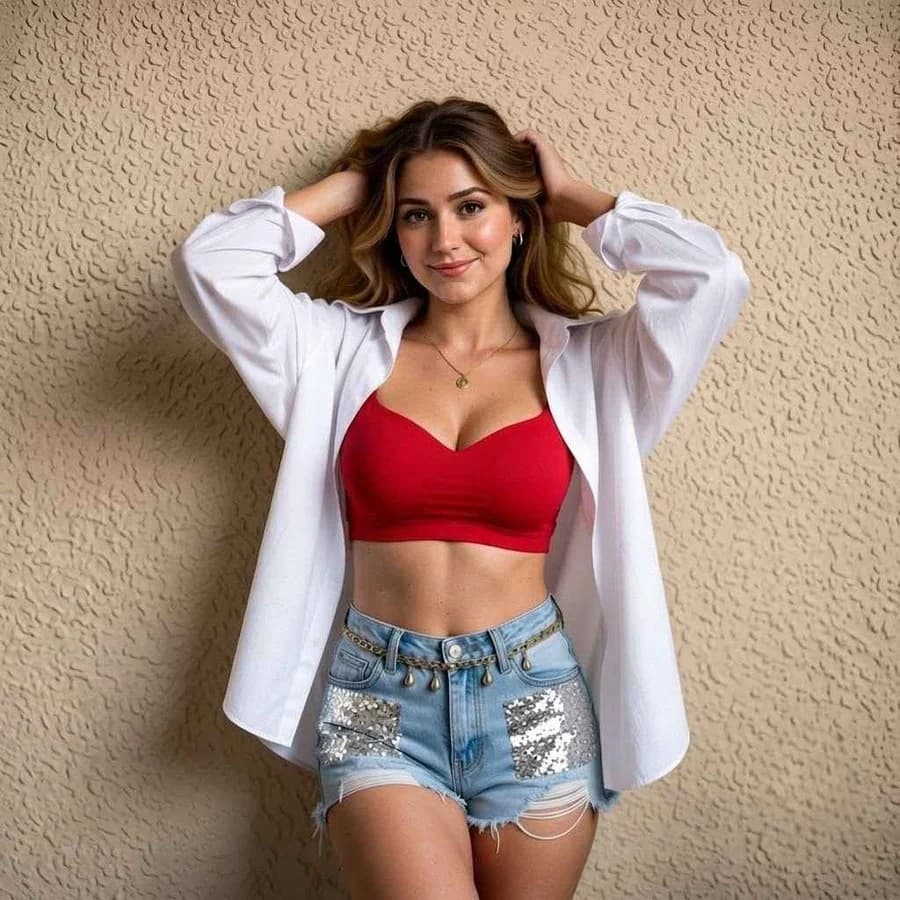
Upload a photo, describe the change in one sentence, and let the AI do the selecting for you.
Editing by describing, not by selecting
Traditional photo editing is a series of selections: draw around the sky, adjust the sky, feather the edge, try again. Prompt editing skips that. You say what should be different and the model works out which pixels that means.
The skill that replaces the selection tool is describing things precisely. It is a smaller skill and it is learned in about ten minutes, but it is the difference between an edit that lands and one that changes half the photo.
If there is no photo to start from and you want to create one instead, the AI image generator is the tool for that.
How to edit a photo with AI
Upload the photo
Any photo from your phone or computer. Sharp and well lit beats large.
Describe the change
One sentence saying what should be different. Name the thing, not the mood.
Generate and check
Look at what changed. If it went too far, ask for less and run it again.
Edits that work well
Change the background
"Replace the background with a plain grey studio wall." The most reliable edit there is, because the subject stays and only what is behind them moves.
Change clothing
"Put him in a navy suit and white shirt." Works best when the original clothing is clearly visible rather than cropped at the edge of frame.
Fix the lighting
"Light the face softly from the left and remove the harsh shadow." Lighting edits are subtle and often the ones that make a photo usable.
Remove something
"Remove the bin on the right and continue the wall behind it." Saying what fills the space is what separates a clean removal from a smudge.
Change the season or weather
"Make it a snowy winter afternoon." Large scene changes like this need room around the subject to be convincing.
Restyle the whole image
"Make it look like a film photograph from the 1970s." Style edits touch everything on purpose, so expect colour and grain to change together.
Writing a prompt the model can act on
Name the thing. “Make this better” has no target, so the model decides for you and usually changes more than you wanted. “Brighten the face and leave the background as it is” has two instructions, both checkable.
Say what stays. Adding “keep the face and pose unchanged” costs five words and prevents the most common disappointment, which is an edit that quietly redrew the person along with the scene.
Change one thing at a time. If a result is nearly right, adjust a single word and run it again rather than rewriting the whole prompt. It is the only way to tell which word was doing the work.
When a different tool is the better answer
Some jobs have a dedicated tool that does them more reliably than a prompt will. Cutting a subject out cleanly is the background remover. Sharpening a soft or blurry photo is the enhancer, and making a small one bigger is the upscaler. Colouring an old black and white photograph is the photo colorizer.
Prompt editing is the general case: it handles everything those tools do not, and it handles combinations that no single-purpose tool covers.
Frequently asked questions
Backgrounds, clothing, lighting, colour, weather, season, added or removed objects, and the overall style of the picture. Anything you can describe in a sentence is worth trying, and the specific things tend to work better than the vague ones.