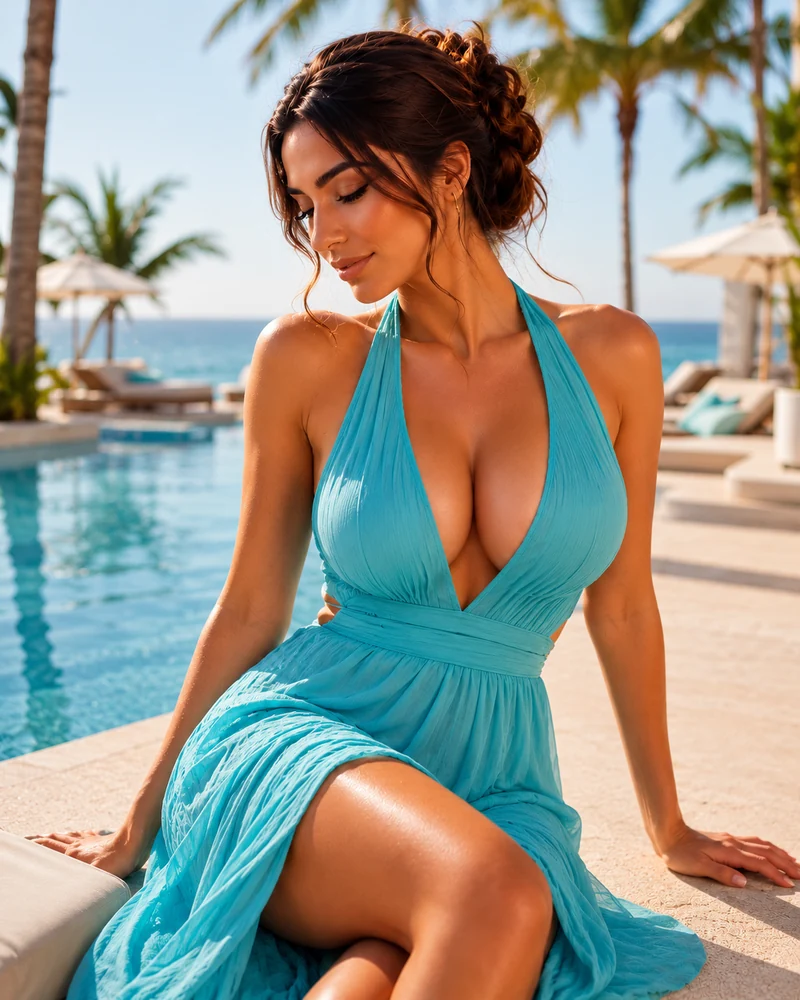
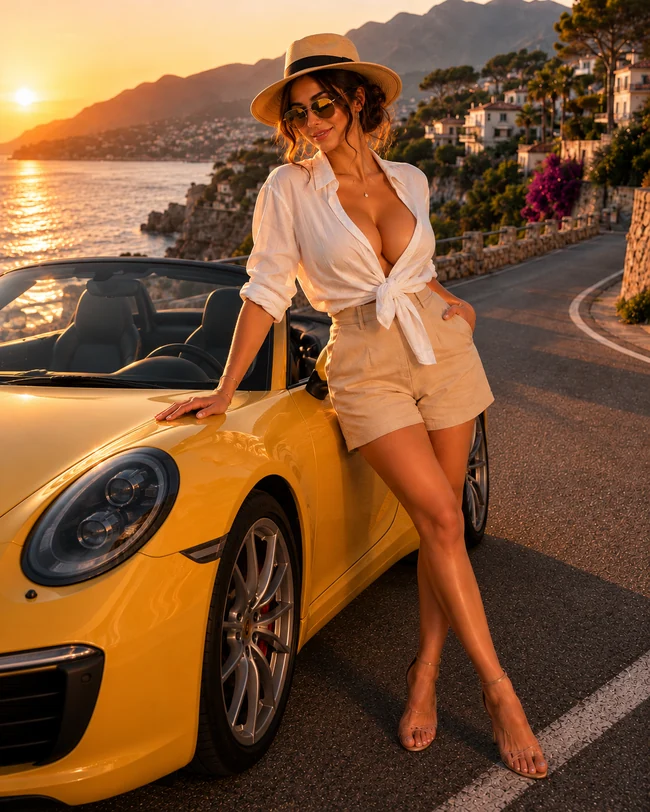
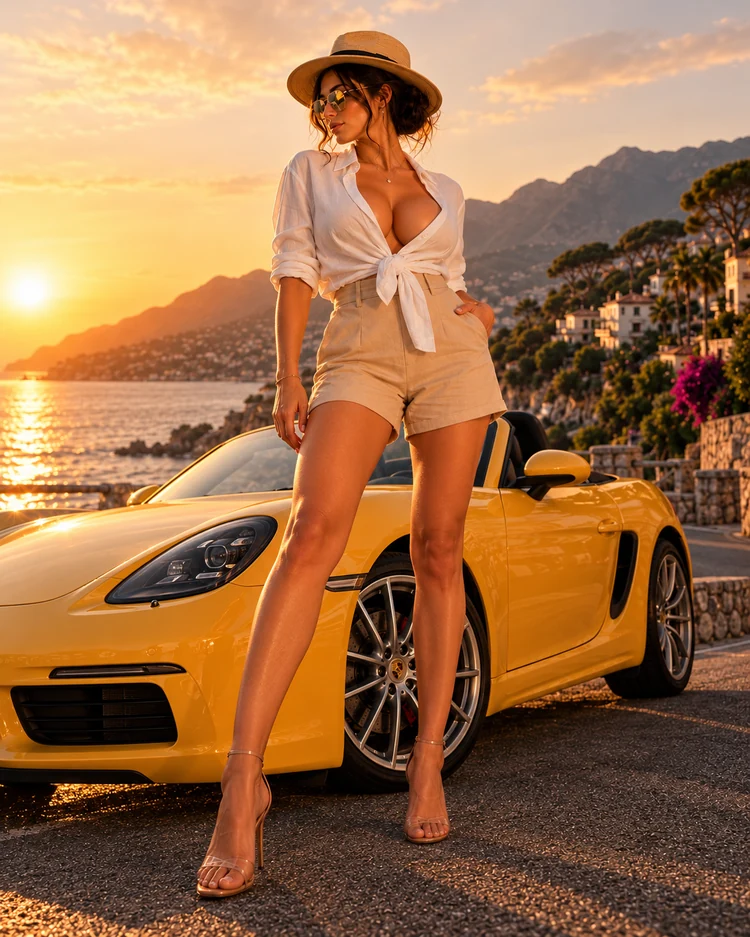
Describe the image
Write what you want to see in plain words. Subject first, then where it is, then the style you want it in. There is no prompt syntax to learn.
Describe any picture and create it in seconds. No photo to upload, no design skills, no prompt syntax to learn.
Write what you want to see in plain words. Subject first, then where it is, then the style you want it in. There is no prompt syntax to learn.
Pick the aspect ratio that matches where the image is going, wide for a header, tall for a Reel, square for a post. The model composes for that frame.
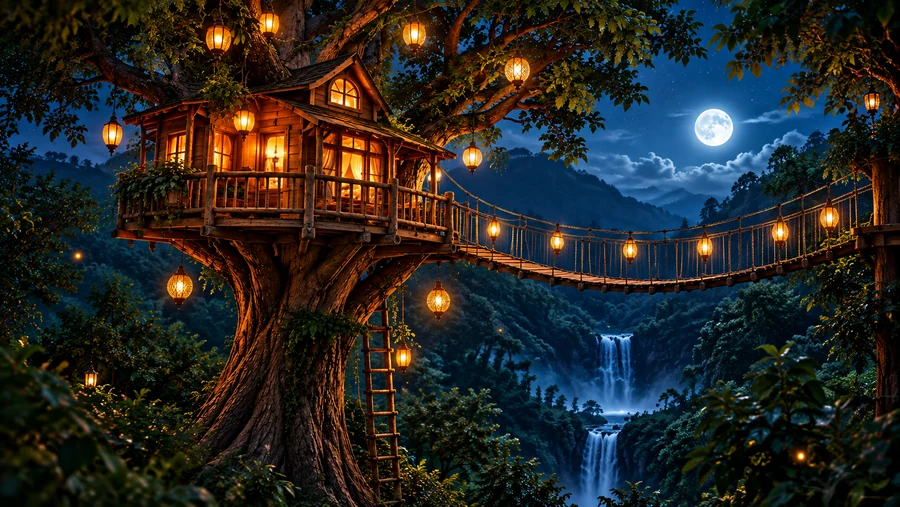
The image is ready in seconds. Generate again for a different take on the same prompt, or download it and carry on in the photo editor.
Turn your imagination into stunning images with AI.
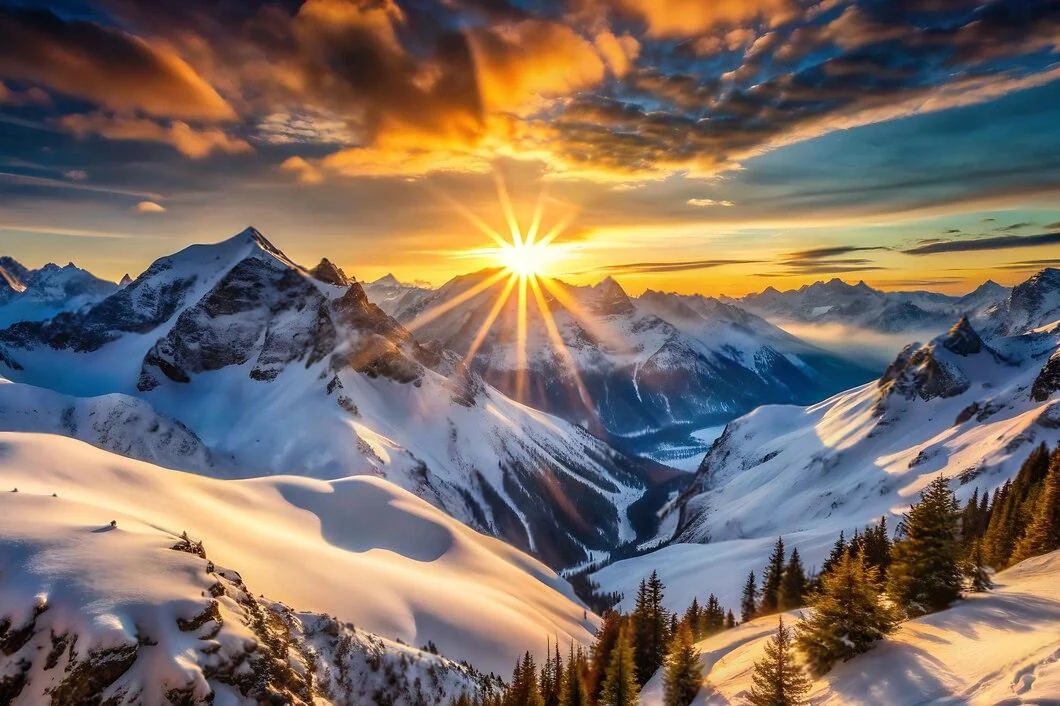 Sunrise over snowcapped mountains▭ 16:9
An AI image generator turns a written description into a picture. You do not upload anything and you do not need a photo to start from, which is the whole difference between this and a photo editor. You describe what you want to see, and the model paints it.
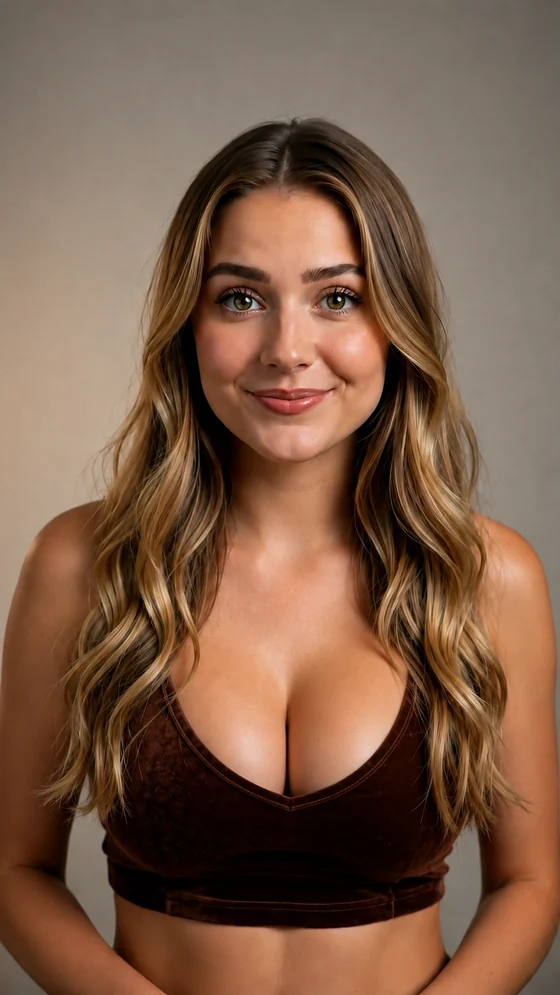 Upload Image
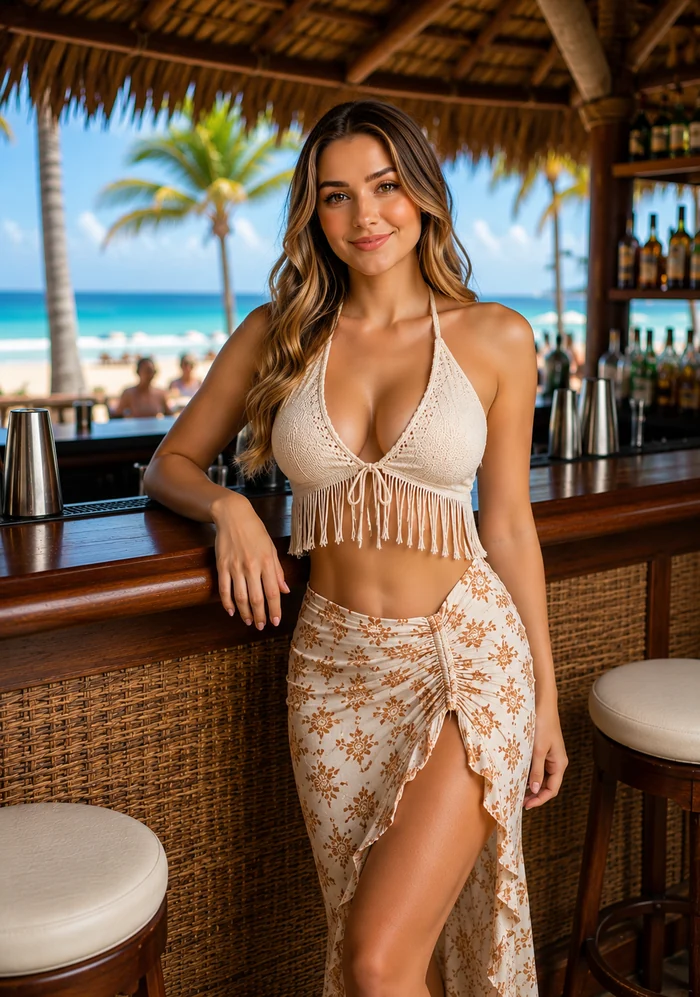 Edit Image
An AI image editor changes a photo you already have. Describe a new background, a different outfit or the look you want, and the AI applies your edit. When you already have the photo and want it changed instead, the AI photo editor is the tool for that.
Better prompts create better images. Be specific, not complicated.
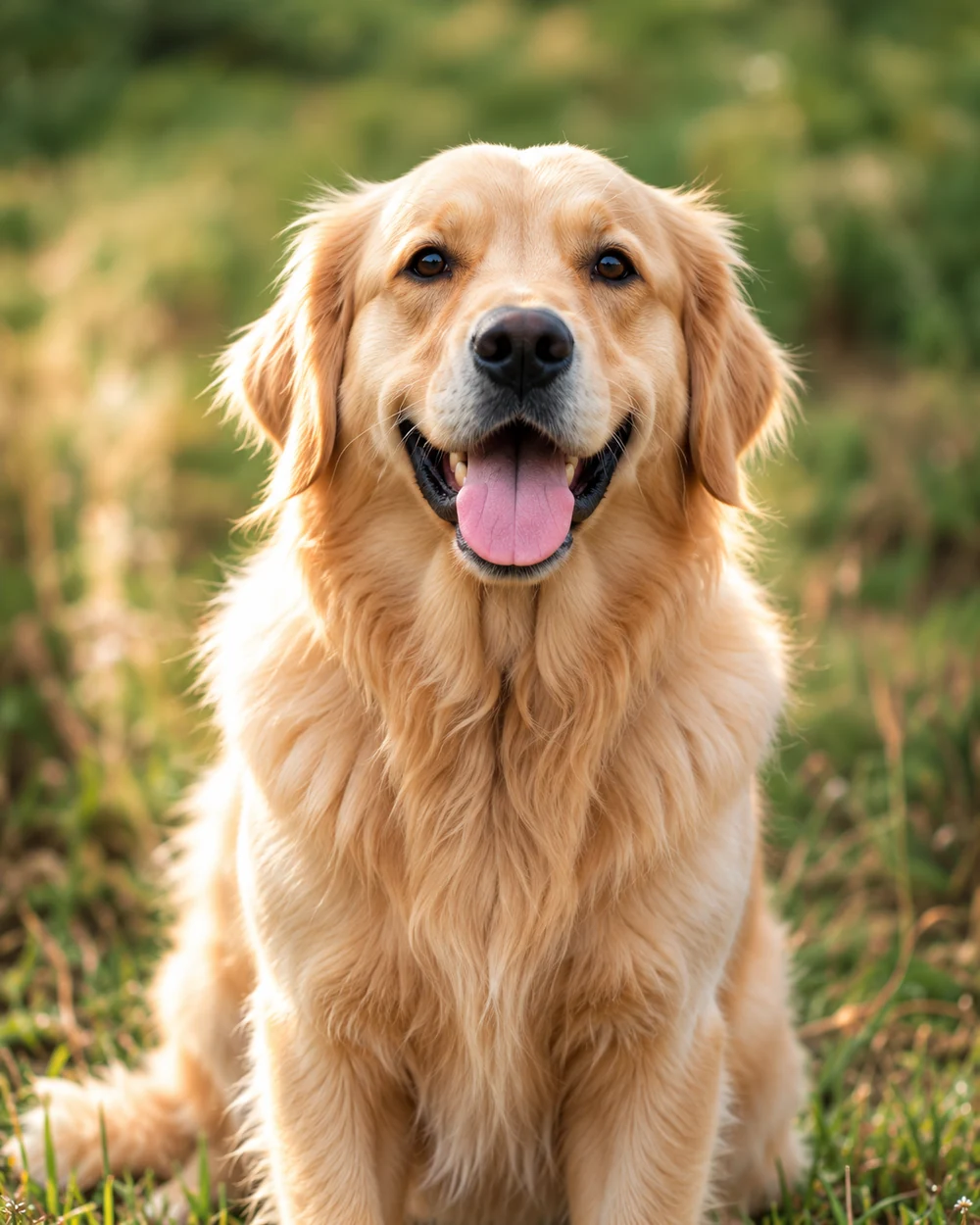 Vague Prompt
“A Dog”
Too simple → AI has to guess the subject, setting, lighting and style.
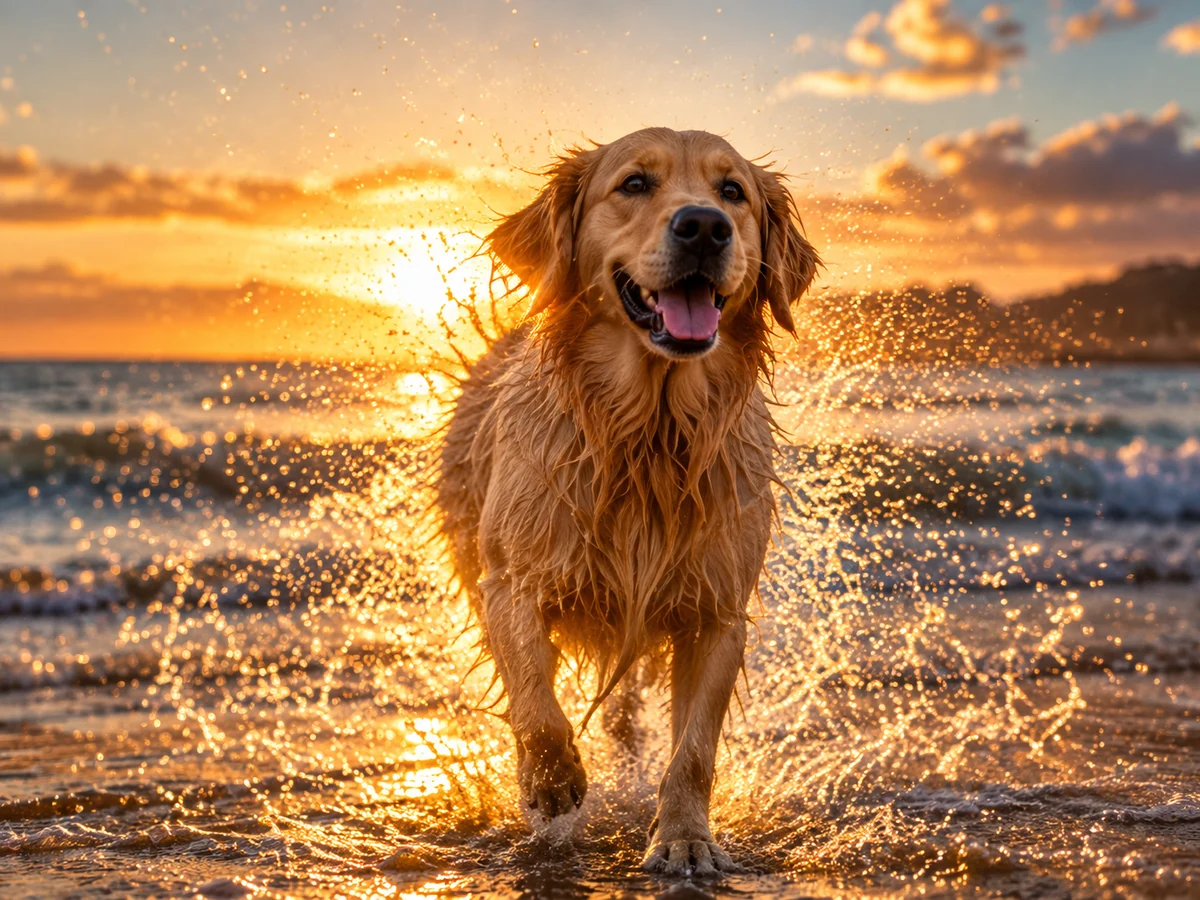 Better Prompt
“A wet golden retriever shaking off water on a beach at sunset, backlit, spray caught mid-air.”
More detail → More control → Better result.
What is the image about?
A golden retriever
Where it is and what the light is doing
Beach at sunset, backlit
How should it look?
Photograph, illustration, 3D render…
Include these three things in your prompt for better results.
Explore what you can create with AI, from content visuals to creative concepts.
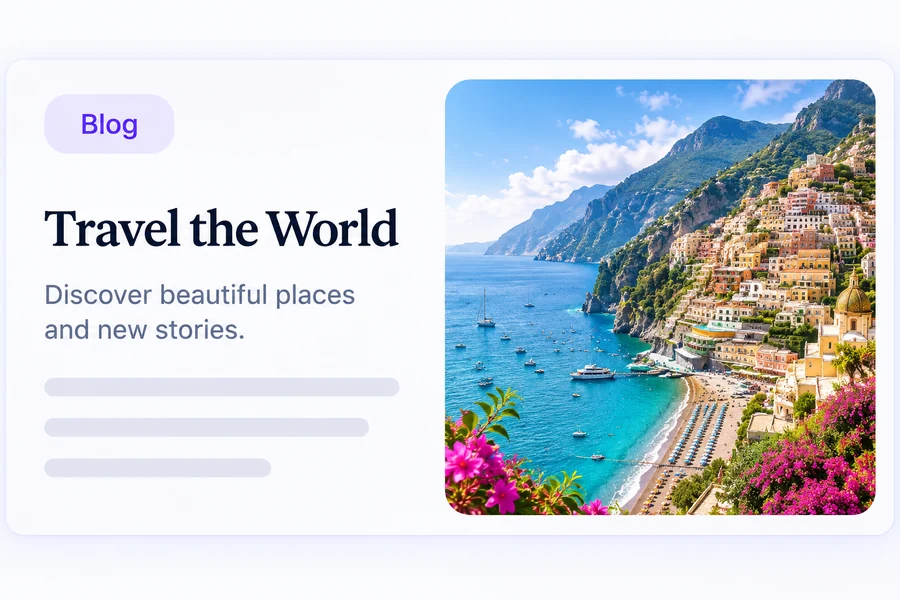
A header that matches the piece instead of the same stock photo everyone else used.
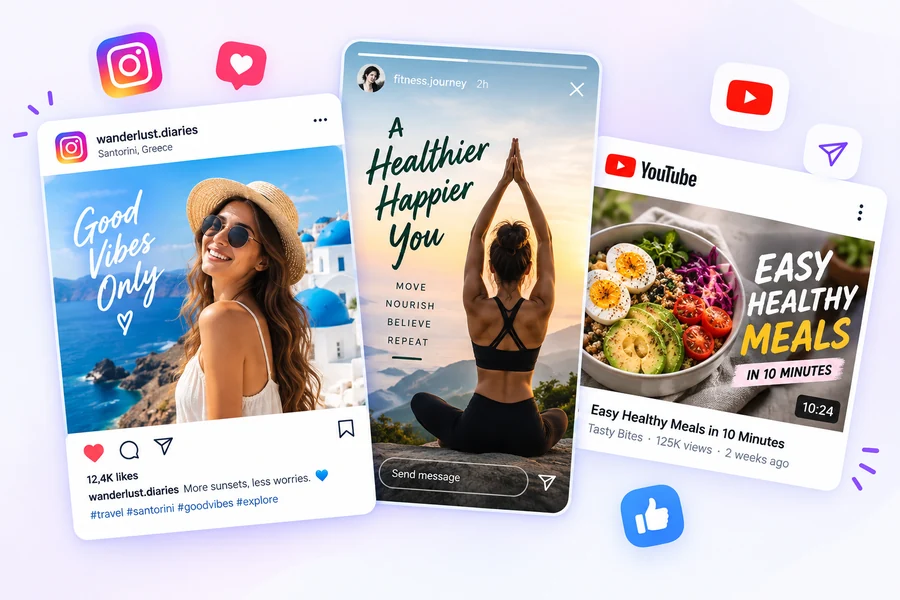
Square for the feed, tall for Stories and Reels, wide for a video thumbnail.
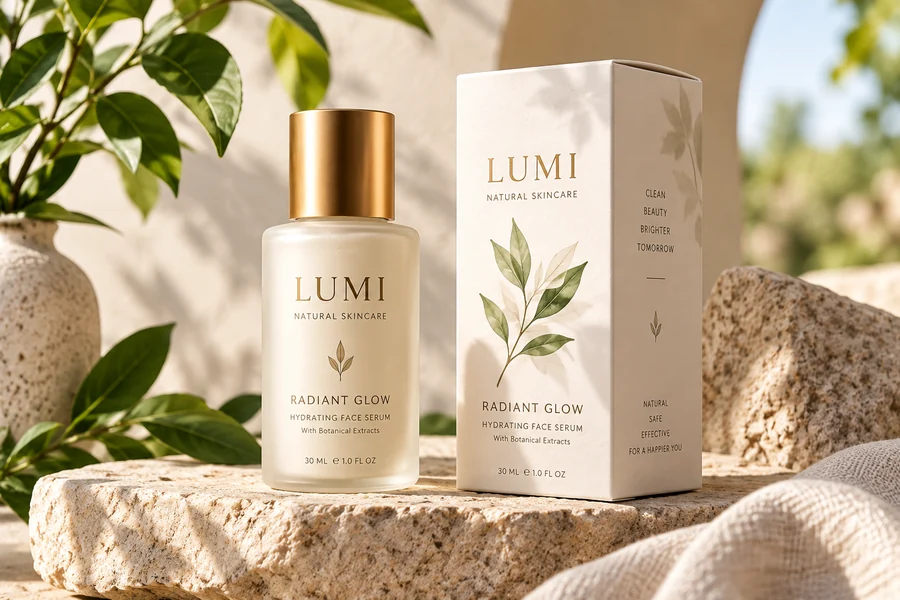
See an idea before it exists: packaging, a room, a poster, a scene you cannot photograph.
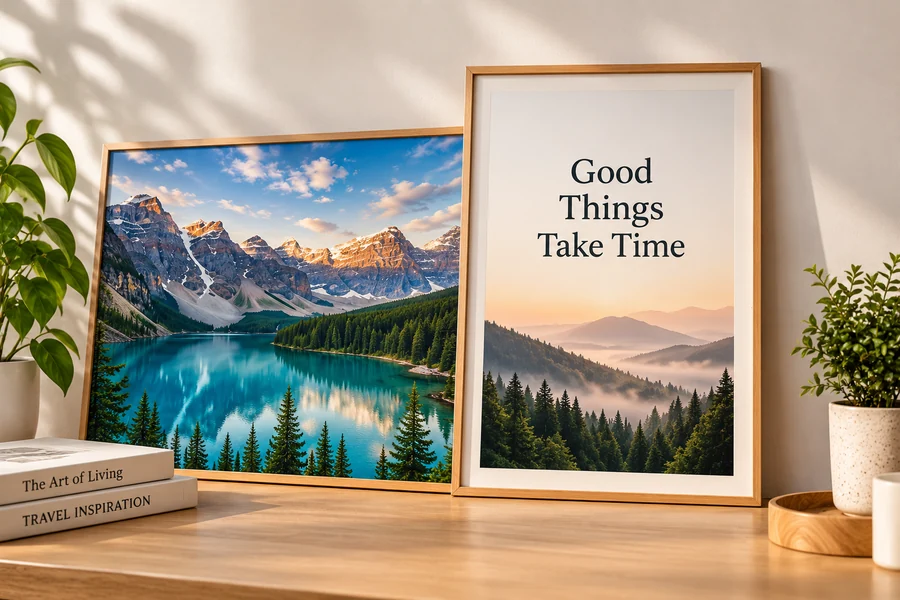
Generate wide or tall at the ratio you will actually hang or set as a background.
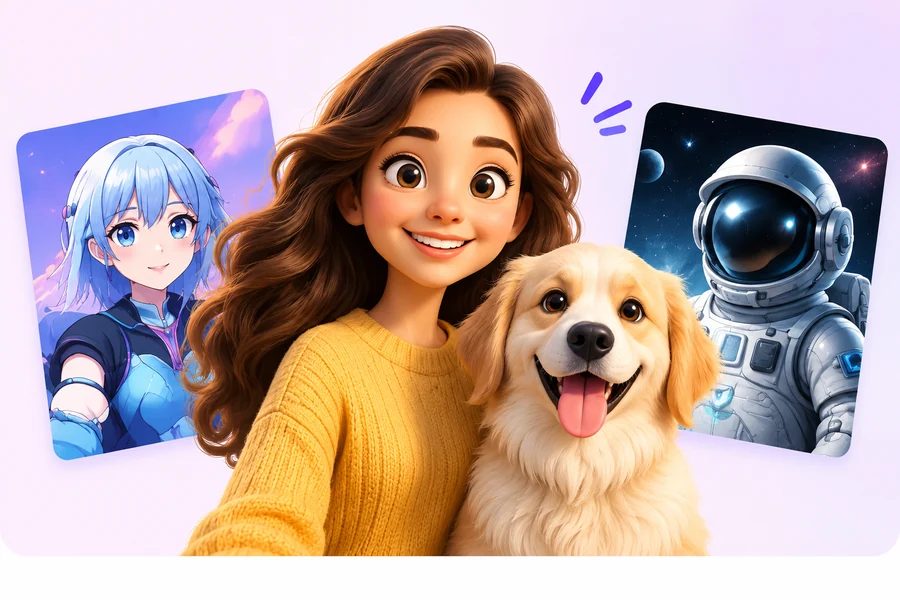
Cartoon, anime, watercolour or 3D render, from the same plain description.
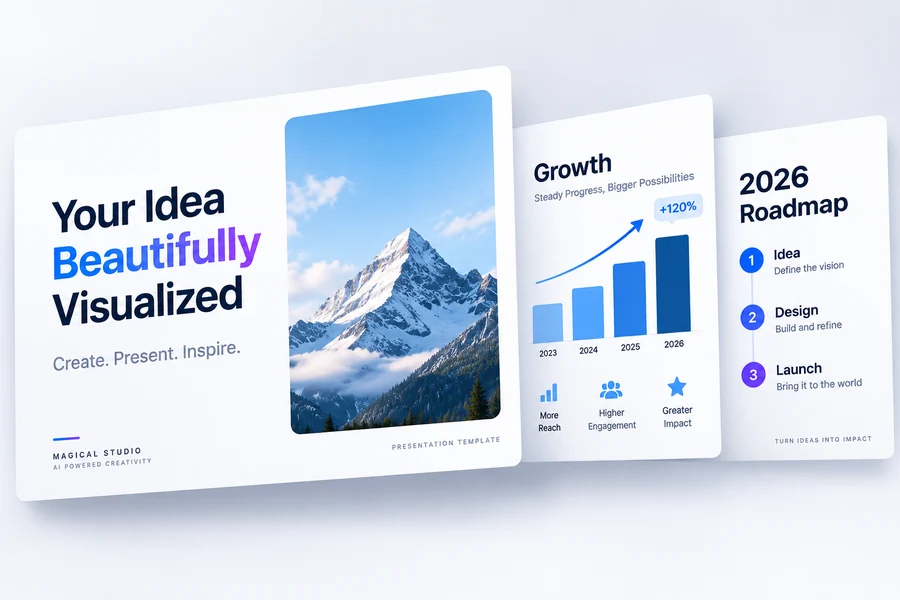
One consistent look across every slide, rather than a hunt through image libraries.
Discover what you can create with AI. Explore imaginative worlds, expressive portraits and detailed landscapes, then describe your own idea to bring it to life.
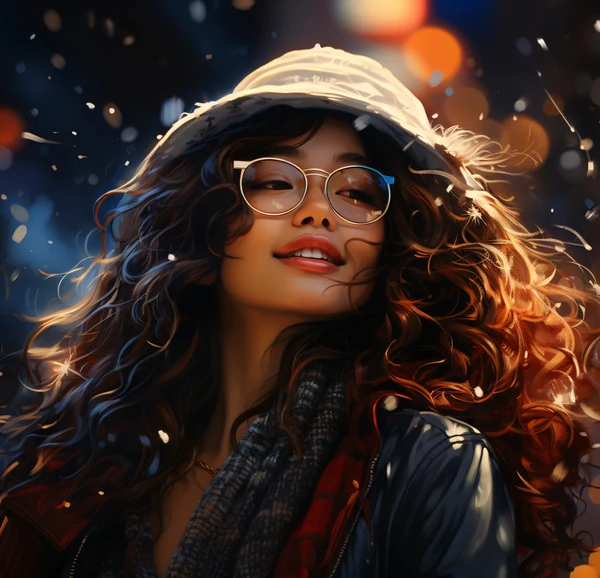
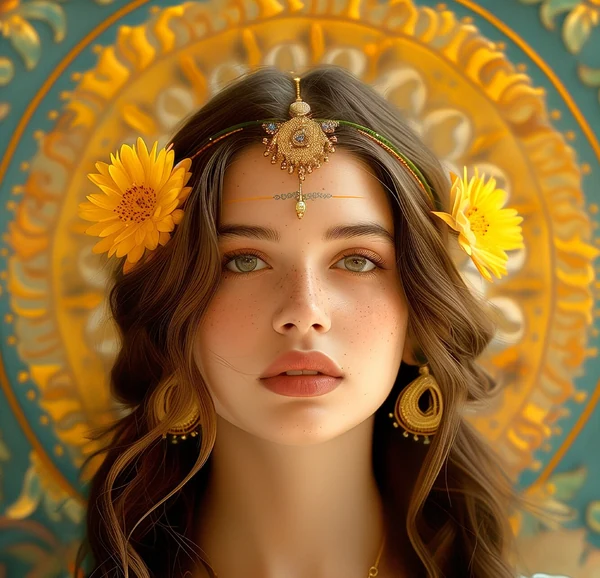
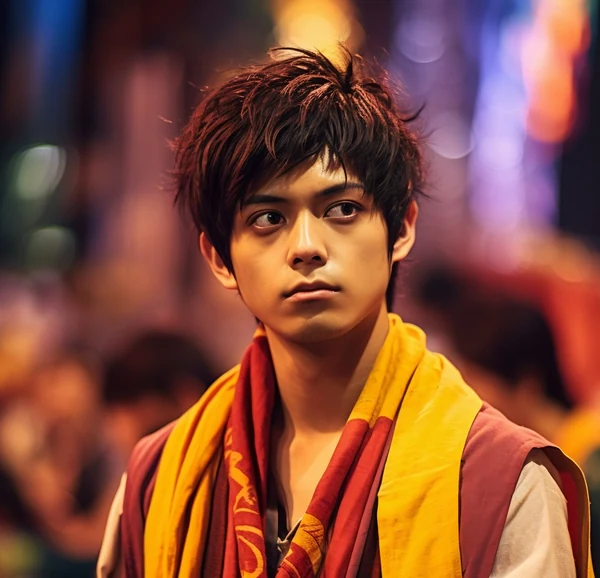
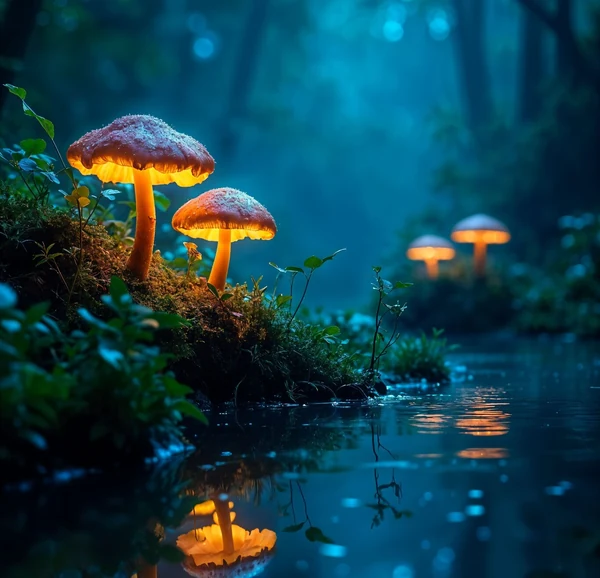
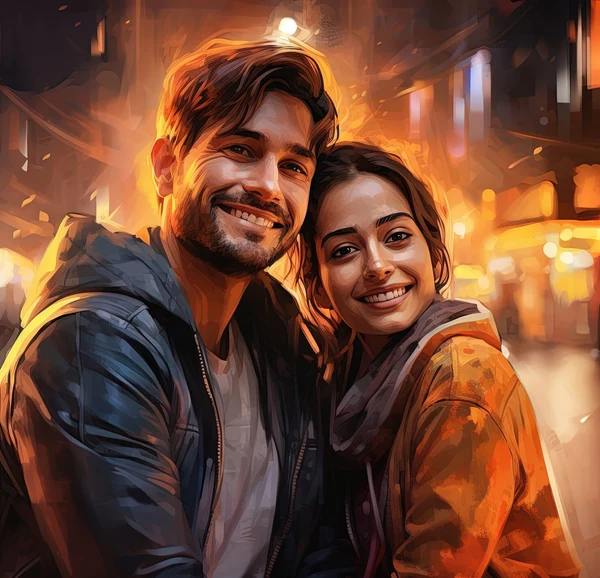
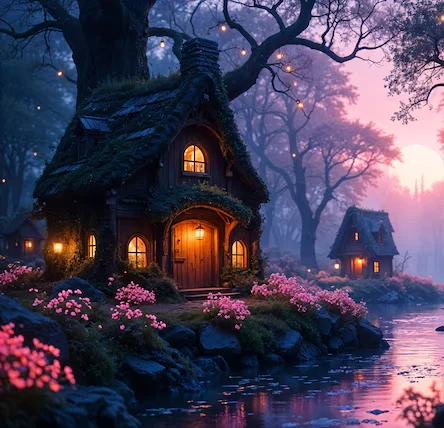
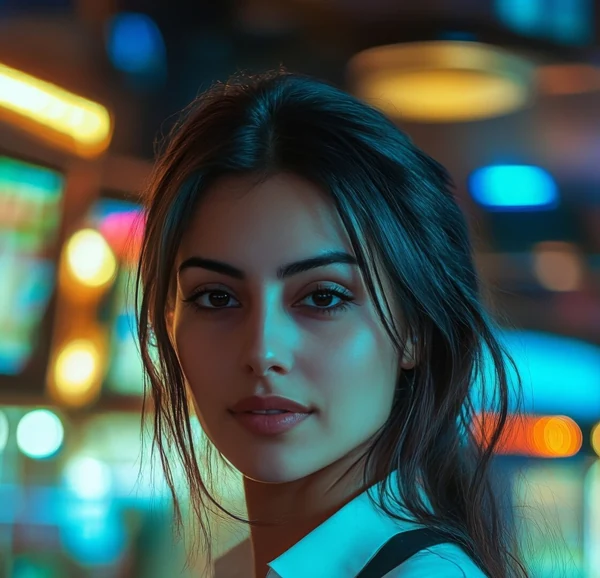
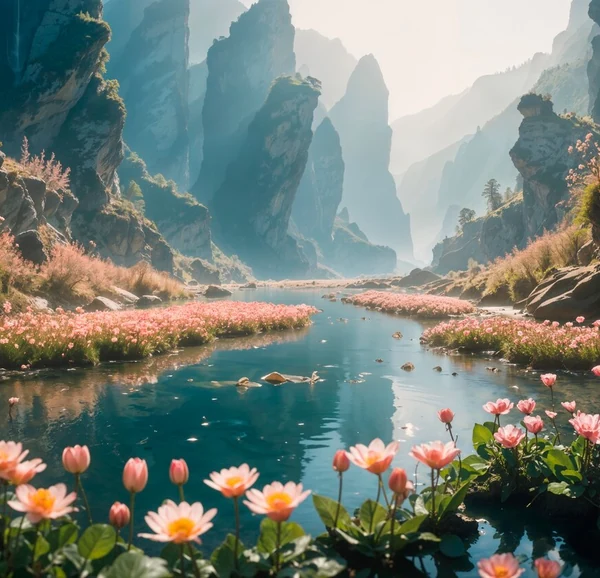
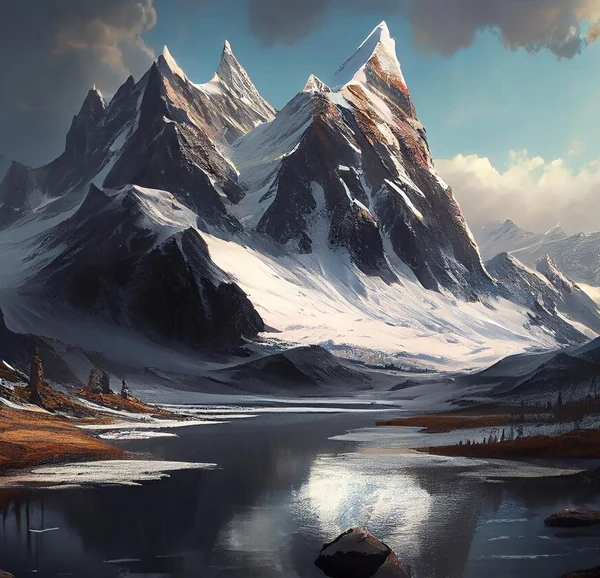
A generated image is a starting point as much as a finished one. Download it and take it further with our powerful tools.
Each of those is its own tool with its own daily free allowance, so working an image through several of them does not eat one shared quota.
Learn more about Magical Studio AI and our powerful tools.
Sign in to try the tools free. Your account shows your available generations. Unlimited plans remove daily generation limits.
Name the subject, then the setting, then the look. "A ginger cat asleep on a windowsill, afternoon light, shallow depth of field" gives the model far more to work with than "a cat". Style words like cinematic, watercolour, 3D render or product photo steer the whole image, so put the one you care about most near the front.
Pick the shape of the place it is going. 16:9 suits blog headers, presentation slides and YouTube thumbnails; 9:16 suits Reels, Shorts and Stories; 1:1 suits profile pictures and feed posts; 4:3 and 3:4 suit prints and photo frames. Choosing before you generate is better than cropping after, because the model composes for the frame it is given.
You are free to use what you create, including in commercial work. Do check the result before you publish it: AI images can contain small mistakes, and prompts that name a living person, a trademark or another artist’s style bring their own rights questions with them.
Yes. Download the result and open it in the photo editor on the home page to restyle it, or run it through Enhance and Upscale for a larger, cleaner version. Check your available generations in your account before starting another edit.