


Upload your image
Upload your low-resolution photo.
Upscale low-resolution photos to crisp HD without losing quality.

Upload your low-resolution photo.

The AI upscales it and adds detail.

Download your high-resolution image.
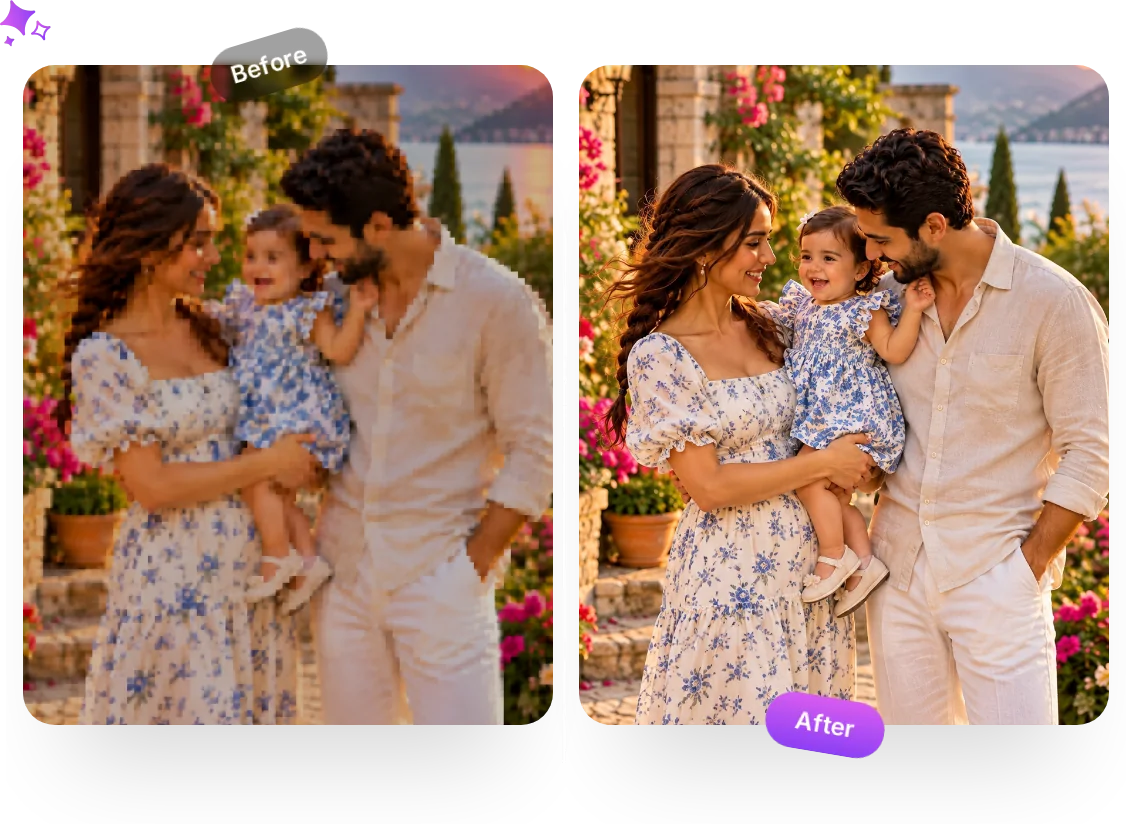
Small images break the moment you enlarge them, and this image upscaler fixes that. Use it to increase resolution for printing photos as posters, canvases or large frames, and to make e-commerce and product images crisp on big screens. Designers upscale logos, thumbnails and assets that were saved too small, while sellers turn low-res supplier photos into clean HD listings. It is also great for enlarging old, tiny or downscaled pictures, AI-generated art and game or anime stills so they stay sharp when you zoom in. Because it runs online with nothing to install, you can upscale images to HD whenever you need a bigger, sharper file.
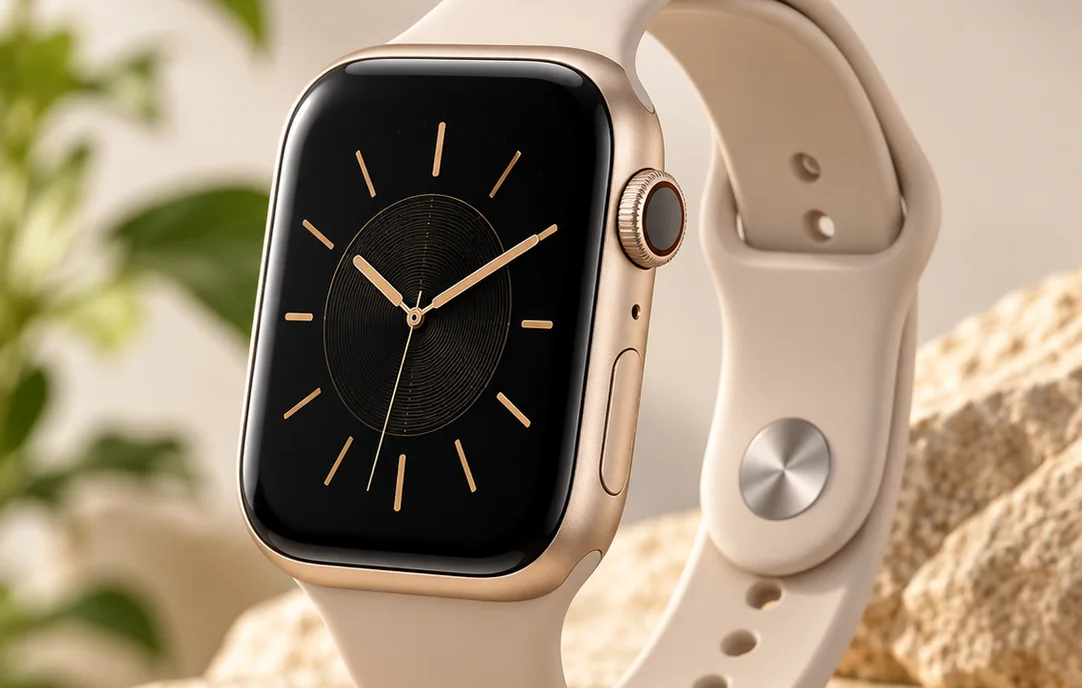
Upscaling works best when the original is reasonably clean, so remove heavy noise or compression artifacts before you increase resolution where possible. Start with the highest-quality version of the image you have, a sharp small photo upscales far better than a blurry one. Choose an upscale amount that matches your goal: moderate increases for crisp HD on screen, larger ones for big prints. For the cleanest results, avoid stacking filters first, since the upscaler adds detail more accurately on an untouched image.
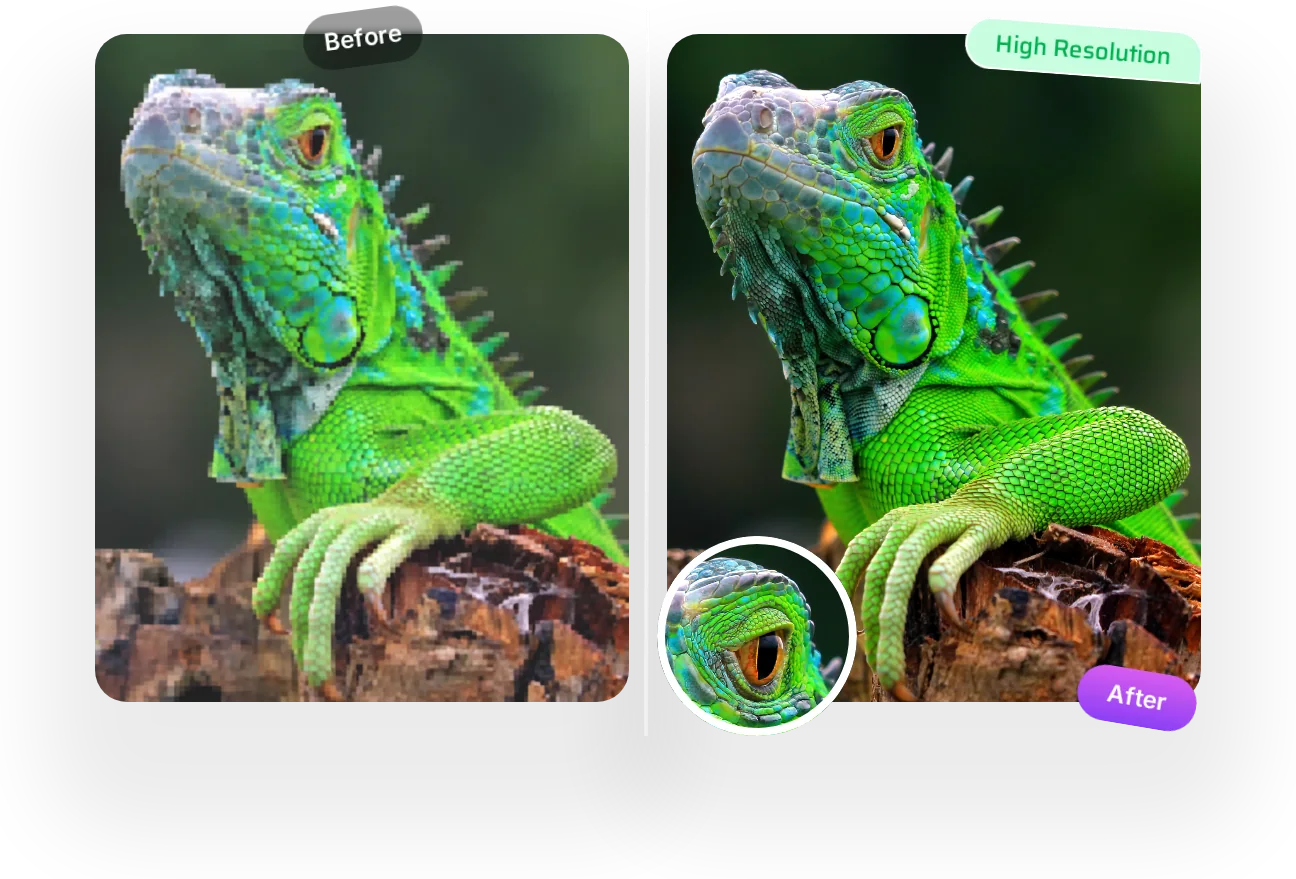
Magical Studio AI’s image upscaler increases the resolution of small or low-quality images while adding sharp detail, turning pixelated, low-res pictures into crisp, high-definition photos. Use this AI image editor to increase resolution and get clean HD results ready for printing, posting or zooming in, with no quality loss or blur. It works as an online photo editor in your browser, so you can upscale images and edit photos with AI in seconds, then download a bigger, sharper version instantly.
Fix pixelated, blurry and low-resolution photos for printing, social media, marketing, presentations and more.
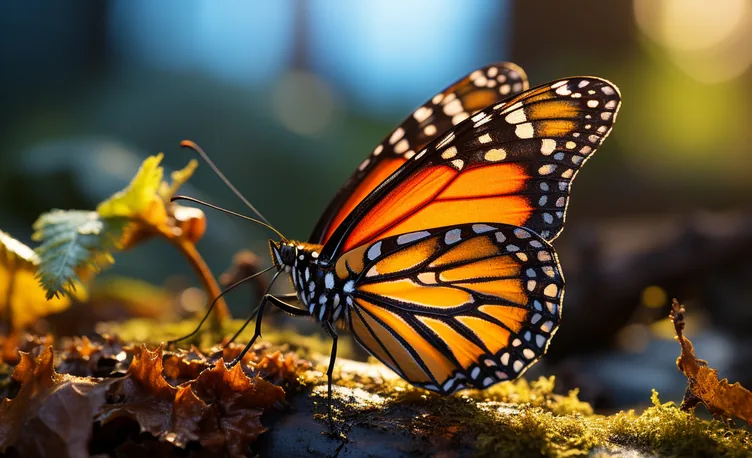
Enlarge your shots with one-click AI upscaling, sharper and ready to print.

Upscale artwork, anime stills and renders with cleaner lines and detail.
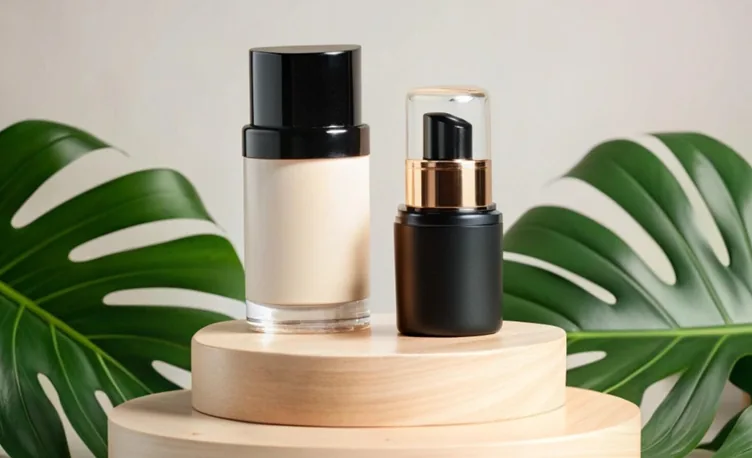
Turn small supplier photos into crisp, HD product images.
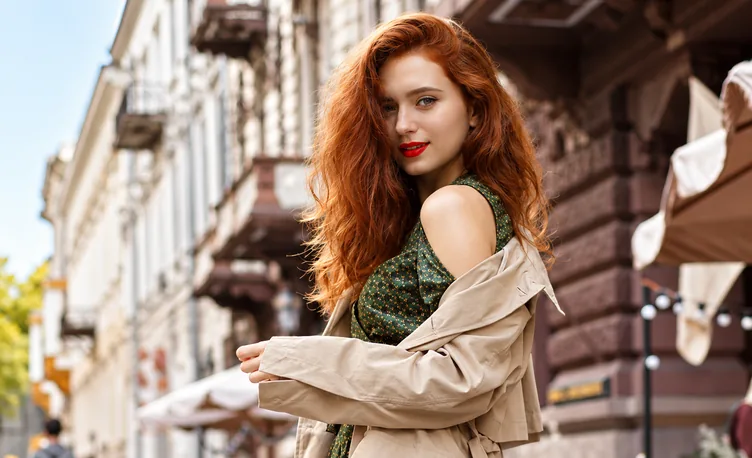
Upscale small images, banners and product shots for sharp screens.
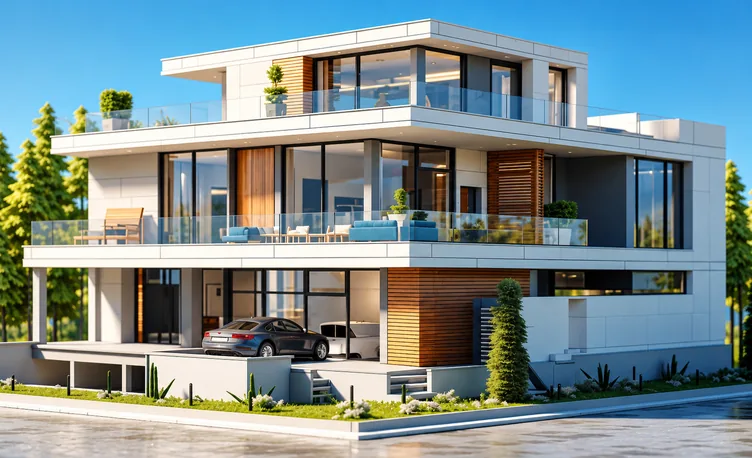
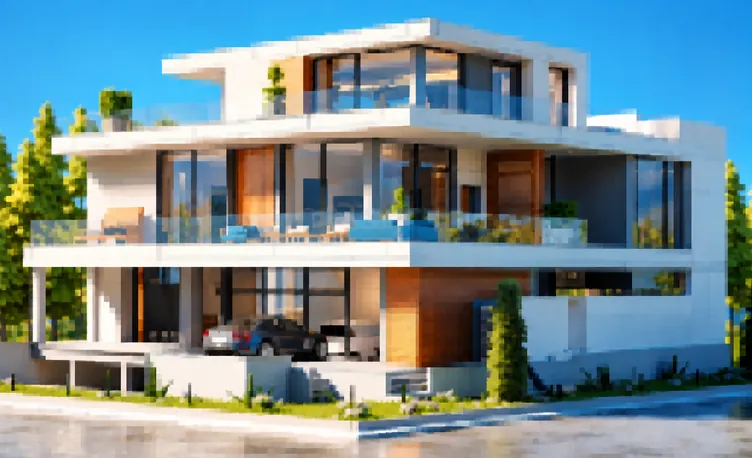
Make property photos bigger and sharper for listings.
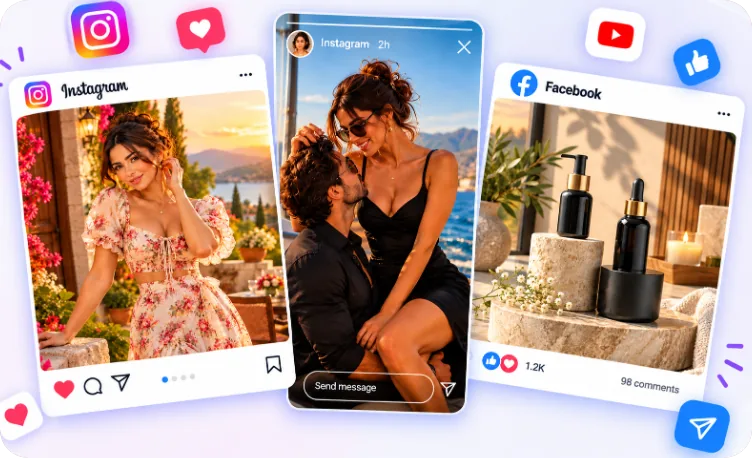
Upscale phone photos so posts look sharp on every screen.
Boost low-res photos to crisp HD. Upload a photo and see the result in seconds, free to try.
Upload your ImageFile must be JPEG, JPG, PNG or WebP and up to 40MB
FAQ’s
Learn More About Magical Studio AI and Our Powerful Tools
The AI increases resolution while keeping edges sharp and adding realistic detail, so results stay crisp instead of blurry.
Printing, large displays, e-commerce, and any use where a bigger, sharper image is needed.
Every account gets 5 free images a day, no card needed. The Unlimited plan makes every image tool unlimited.
No, unlike simply stretching a photo, the AI image upscaler adds new, realistic detail as it increases resolution, so edges stay sharp and the result looks like a true HD image rather than an enlarged, pixelated one. The cleaner your starting image, the crisper the upscaled output will be.
Upscaling makes the image larger by increasing its resolution to HD while adding detail, which is ideal for printing or big screens. Enhancing keeps the same size but sharpens, denoises and improves clarity. If your photo is small, upscale it; if it is the right size but soft or grainy, use the AI photo enhancer instead.






 Upload your Image