How to Turn Your Photos into Studio Ghibli Style Art
In this guide
What Ghibli-style art actually is
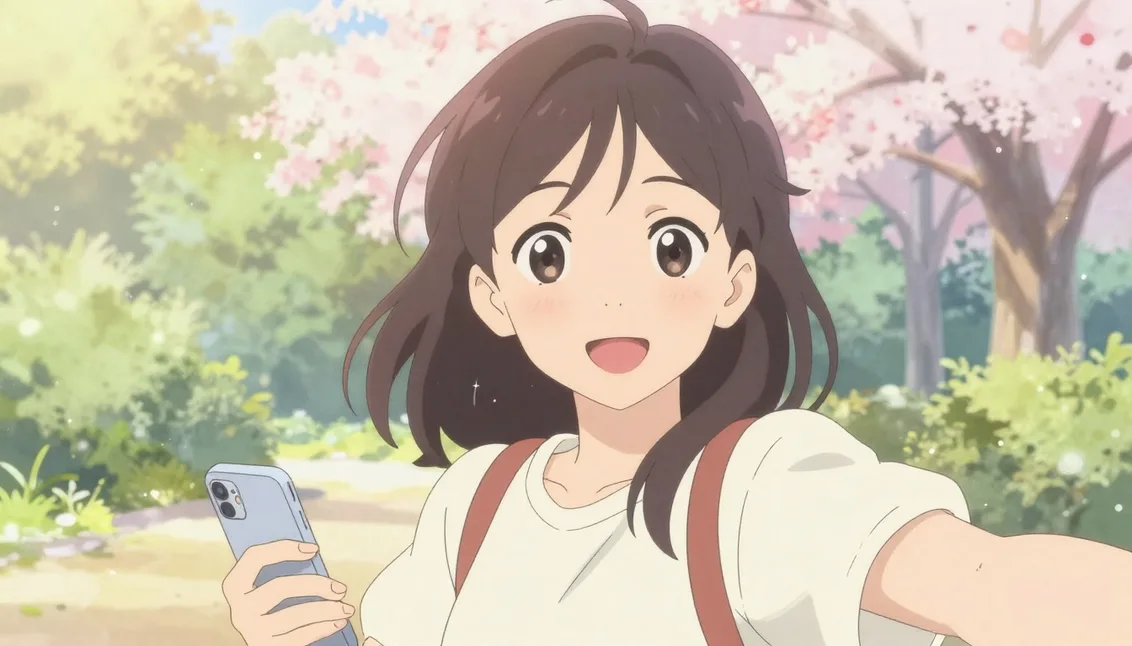
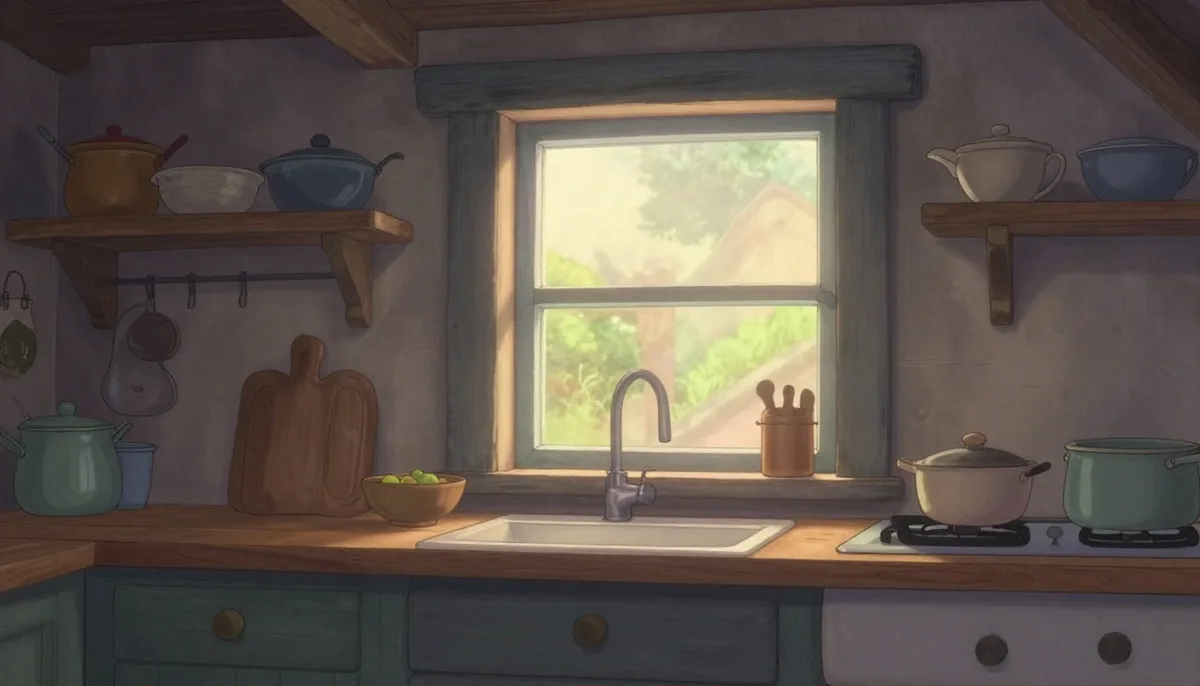
When people say "Ghibli style," they are pointing at a soft, hand-painted look made famous by a particular era of Japanese animation. Think warm lighting, gentle color palettes, painterly skies with fluffy clouds, lush green backgrounds, and characters with simple, expressive faces. It feels calm and a little nostalgic, like a quiet afternoon in a story.
The look is not about sharp realism. It is about mood. Lines are clean but not harsh, shadows are soft, and colors lean toward natural pastels rather than neon. A scene can be ordinary, a person sitting by a window, a cat on a fence, a field at sunset, and the style makes it feel meaningful.
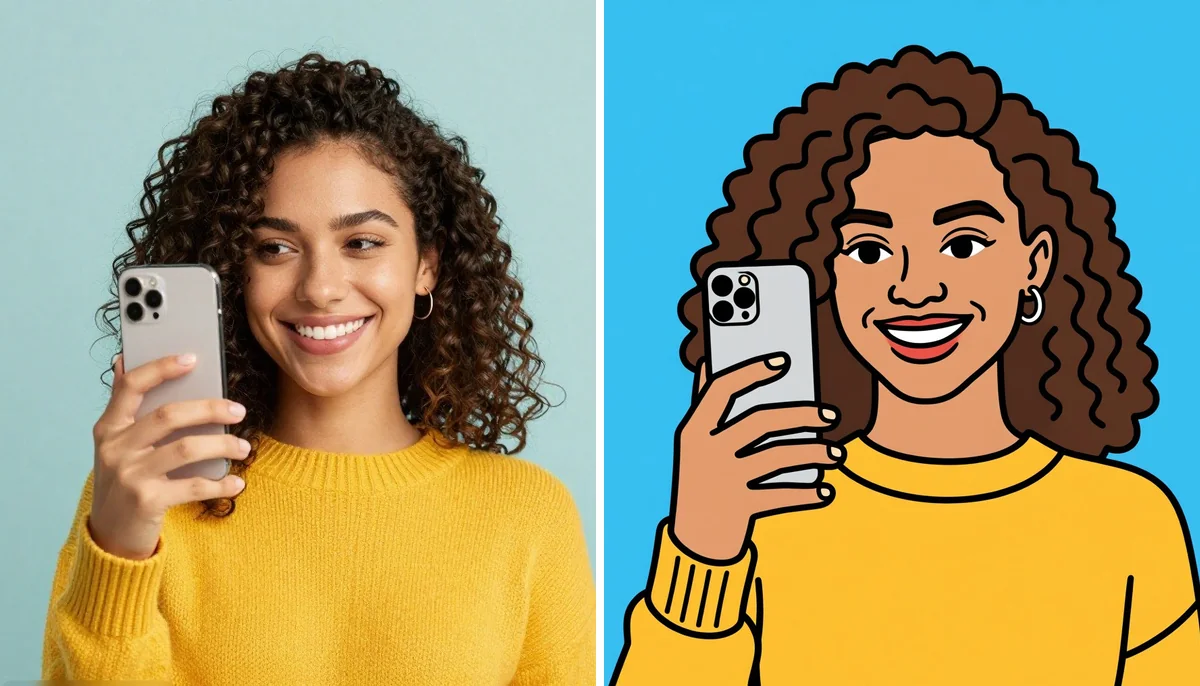
An AI Ghibli generator takes that visual language and applies it to a photo you already have. You are not drawing anything by hand. You upload an image, the tool repaints it in that style, and you get back a version that looks illustrated instead of photographed.
Why so many people love this style
The biggest reason is feeling. This style carries a warmth that a normal photo often does not. A regular selfie is just a selfie. The same selfie repainted in a soft, storybook style suddenly feels like a character portrait, and that emotional shift is what makes people want to share it.
It is also flattering in a forgiving way. Painterly rendering smooths over the small things we tend to dislike in photos, like uneven lighting or a slightly awkward angle, without making you look fake. The result reads as art, so viewers judge it differently than they would a photo.
And it is approachable. You do not need to know how to draw, you do not need expensive software, and you do not need hours of editing. That combination of low effort and high emotional payoff is exactly why this kind of stylization spread so fast online.
How an AI Ghibli generator repaints your photo
In plain words, the AI has studied an enormous number of images and learned the patterns that make an illustrated, hand-painted look. It knows how that style tends to handle edges, skin, hair, skies, foliage, and light. When you give it your photo, it reads the content of your image, what is a face, what is background, where the light is coming from, and then redraws everything using those learned patterns.
It is closer to repainting than to filtering. A simple filter just shifts colors and adds grain on top of your existing pixels. A generator actually rebuilds the image, so eyes get redrawn as illustrated eyes, hair becomes painted strokes, and a cluttered background can turn into a soft scene. That is why the output can look genuinely drawn rather than like a photo with an overlay.
Because it is rebuilding the image, it makes choices. It decides how much to simplify, how to interpret a shadow, what a blurry corner should become. Most of the time those choices are pleasant, and the tips later in this guide help you steer them in your favor.
Turn your photo into Ghibli art step by step
Here is the simple flow using the AI Ghibli tool on Magical Studio. Everything runs in your browser, so there is nothing to download or install.
1. Open the tool and sign in with Google. Every new account gets free daily generations, so you can try it before deciding on anything. 2. Upload a clear photo. A well-lit image with a recognizable subject gives the AI the best starting point. 3. Start the generation and wait a few moments while the AI repaints your image. 4. Review the result. If it is close but not quite right, try again with a cleaner or higher quality photo, since the input matters a lot. 5. Download the version you like, then use it as a profile picture, a wallpaper, a gift, or a post.
If your original photo is small, soft, or low resolution, it helps to clean it up first. Running it through AI Enhance or AI Upscale before stylizing gives the generator more detail to work with, which usually leads to a sharper, more convincing painted look.
Which photos work best
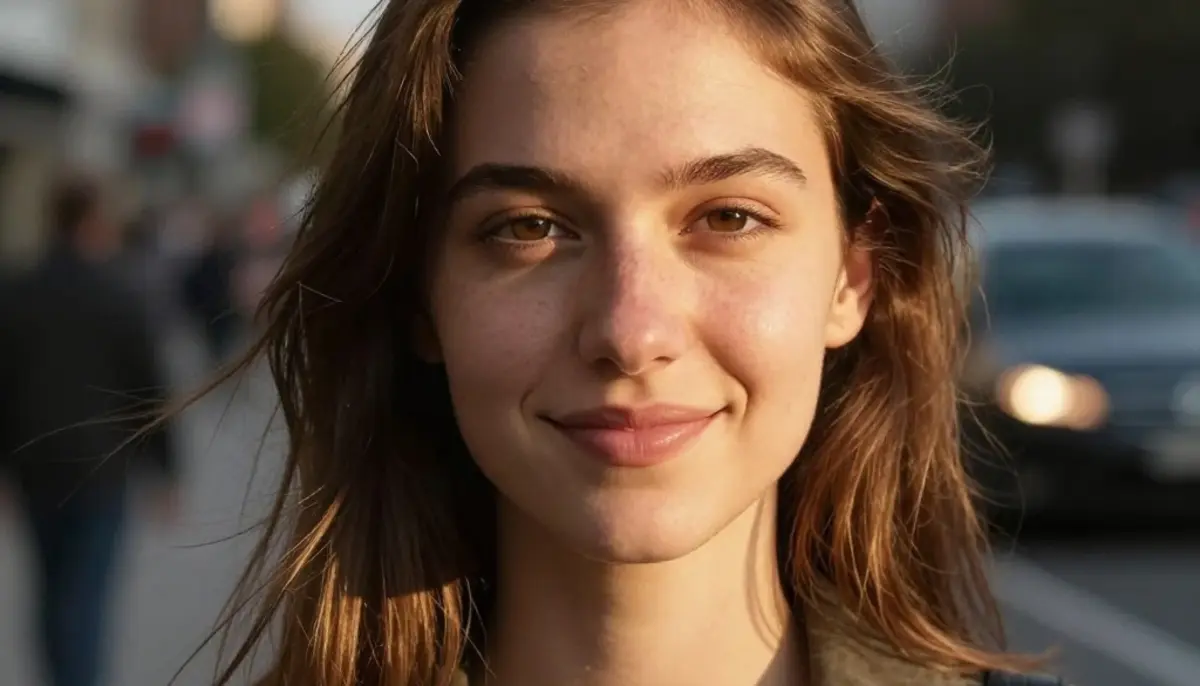
Portraits are the easiest win. A single person facing the camera in good light, with the face clearly visible and not too far away, tends to convert beautifully. The style loves expressive faces, so a natural smile or a calm, direct look reads especially well.
Pets are a close second and often look charming, since the soft painterly treatment suits fur and big eyes. Keep your pet reasonably still and in focus, and make sure the animal fills a good part of the frame rather than being a tiny shape in the corner.
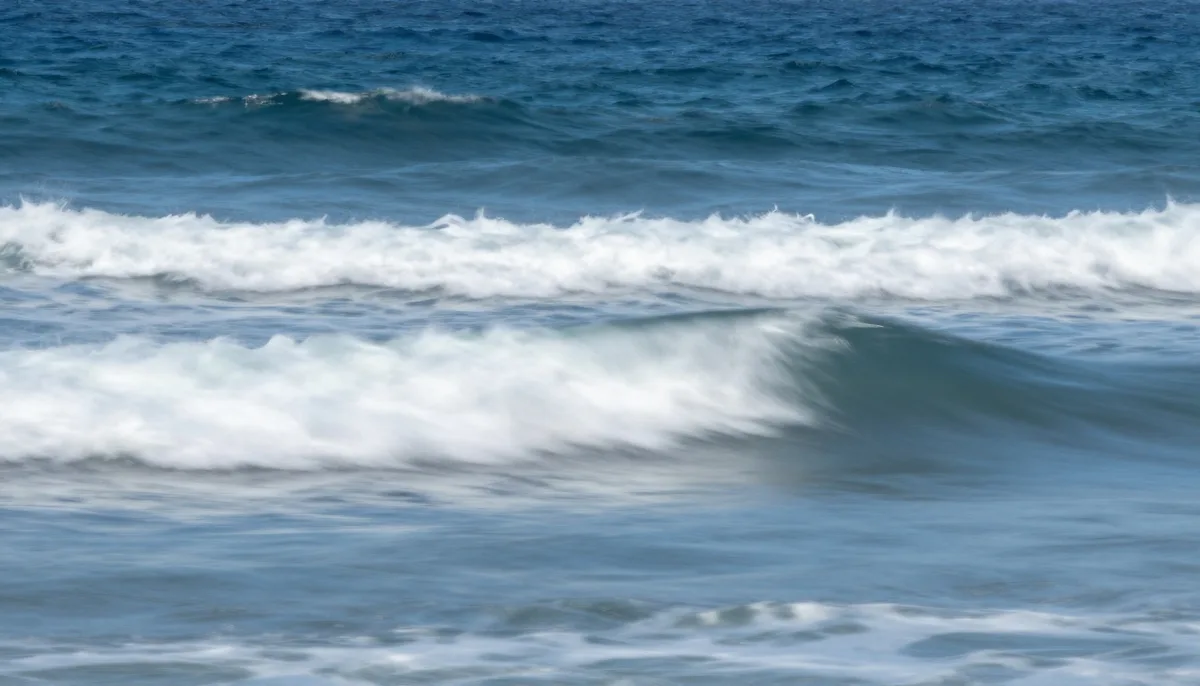
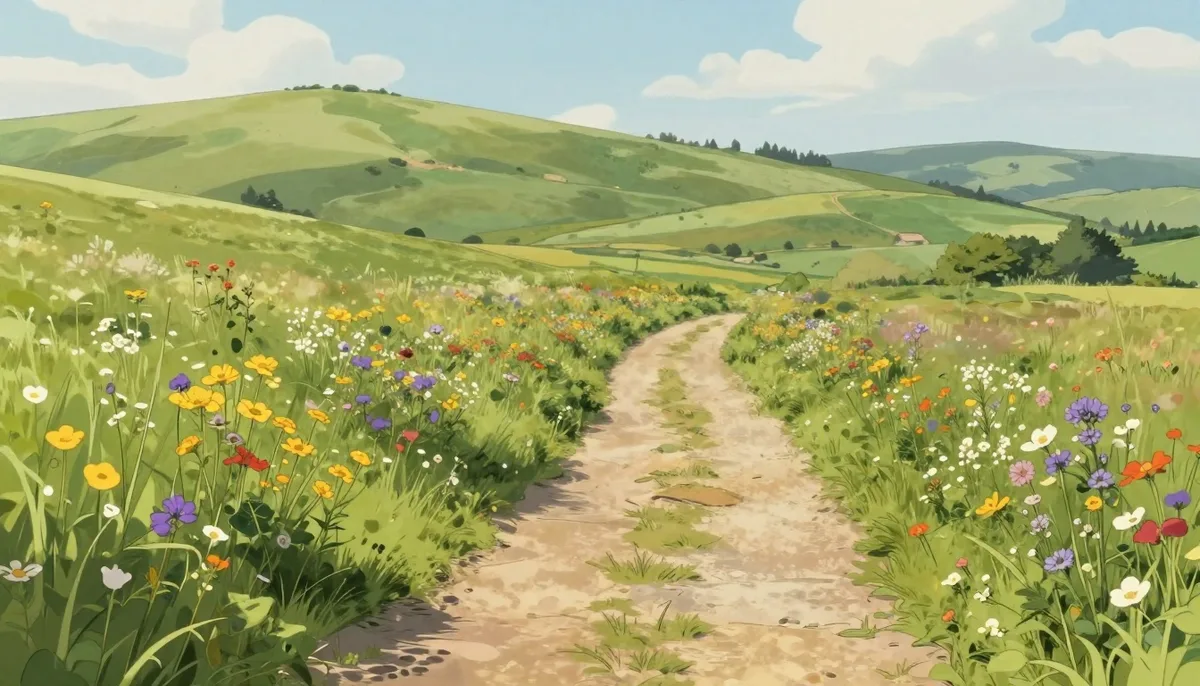
Landscapes and outdoor scenes can be lovely too. Skies, fields, trees, and water are exactly the kind of subjects this style is known for. Wide scenes with a clear sense of light, like a sunset or a green hillside, often come out looking like a frame from an animated film.
Tips for a natural, hand-painted look
Start with light. Soft, even lighting beats harsh, contrasty lighting almost every time. If half the face is in deep shadow, the AI has to guess at what is hidden, and guesses are where odd results come from. Window light or open shade is ideal.
Keep the subject clear and uncrowded. The fewer competing elements in the frame, the more cleanly the AI can render the main subject. A simple background, or a subject that clearly stands out from the background, helps the result feel intentional rather than busy.
Favor quality over size of crowd. One or two subjects work far better than a packed group shot, where faces are small and easily distorted. If you do want a couple together, get close enough that both faces are large and sharp in the frame.
Finally, run it more than once if needed. The same photo can produce slightly different results, so if the first pass has a strange hand or an off expression, generating again often fixes it. Treat it like taking a few shots and keeping the best one.
Common mistakes to avoid
The most common mistake is starting from a bad photo. Blurry, dark, heavily compressed, or tiny images give the AI very little to work with, and no style can invent detail that was never there. If your source looks rough on screen, fix the source first instead of blaming the output.
Another frequent issue is cramming too much into the frame. Big group photos, cluttered rooms, and busy street scenes ask the AI to repaint many small, complex things at once, which is exactly where faces blur together and shapes get muddled. Simplify the scene when you can.
People also tend to over-rely on extreme angles and tight crops. A face cut off at the edge, shot from far below, or partly hidden by a hand or hair is harder to interpret. Center your subject, give it a little breathing room, and keep the important parts, especially eyes, fully visible.
Last, do not expect perfect text or fine logos. Stylization tends to scramble small lettering on shirts, signs, and labels. If readable text matters, this is not the tool for that part of the image.
Real ways people use it
Profile pictures are the obvious one. A stylized portrait stands out in a sea of ordinary photos across social apps, chat apps, and gaming profiles, and it gives you a consistent, recognizable look without showing a literal photo of yourself.
Gifts are a quiet favorite. Turning a photo of a friend, a partner, a parent, or a pet into a soft illustrated piece makes a thoughtful, personal present. Many people print these for cards, framed prints, or small keepsakes.
Wallpapers and backgrounds are easy to make from landscapes or favorite scenes, since the painterly look suits phone and desktop screens well. And for anyone posting content, a stylized image is simply more eye-catching in a feed than a plain snapshot, which helps it get noticed.
If you enjoy this kind of creative editing, it is worth browsing the rest of the tools and the viral Trends gallery, where you can apply other popular looks to your photos with the same upload-and-go flow.
An honest note on style, accuracy, and ethics
This is a stylization, not a magic copy of any specific studio or artist. The tool produces art inspired by a soft, hand-painted animation aesthetic. It is not affiliated with, endorsed by, or connected to Studio Ghibli, and the results are an interpretation of a general style rather than the work of any particular film or creator.
Use it on photos you have the right to use. Stick to your own pictures, or images of people who are happy to be turned into art. Turning someone into an illustration without their okay, or using a stylized image to mislead people about who or what is in it, is not a kind use of the tool.
It also helps to keep expectations realistic. Results vary by photo, hands and small details can come out imperfect, and not every image will convert cleanly on the first try. Treat it as a fun, creative effect rather than a flawless rendering engine, and you will be happy with it far more often.
Price, limits, and trying it for free
You can start without paying anything. Every new account comes with free daily generations, which is enough to test the AI Ghibli tool on a few photos and see whether the look fits what you had in mind.
If you find yourself generating a lot, the free daily allowance is small. For people who want to keep editing without counting each one, there is an optional Unlimited plan that removes the daily limit and lets you create as much as you like. You can read the details on the pricing page or the Unlimited plan page.
There is no pressure to subscribe to try the feature. Make your free portraits first, see if you love the results, and only consider Unlimited if you reach for the tool often enough that unlimited edits would genuinely pay off.
Try unlimited AI photo editing
Run every AI tool as much as you want, right in your browser.