How to Turn a Photo into a Video with AI (Image to Video Guide)
In this guide
What image to video actually means
Image to video is a way to take one still photo and turn it into a short moving clip. Instead of you filming anything, an AI model looks at your picture and generates new frames that extend it across a few seconds of motion. The result is a small video, usually a handful of seconds long, that you can post, share, or drop into a larger edit.
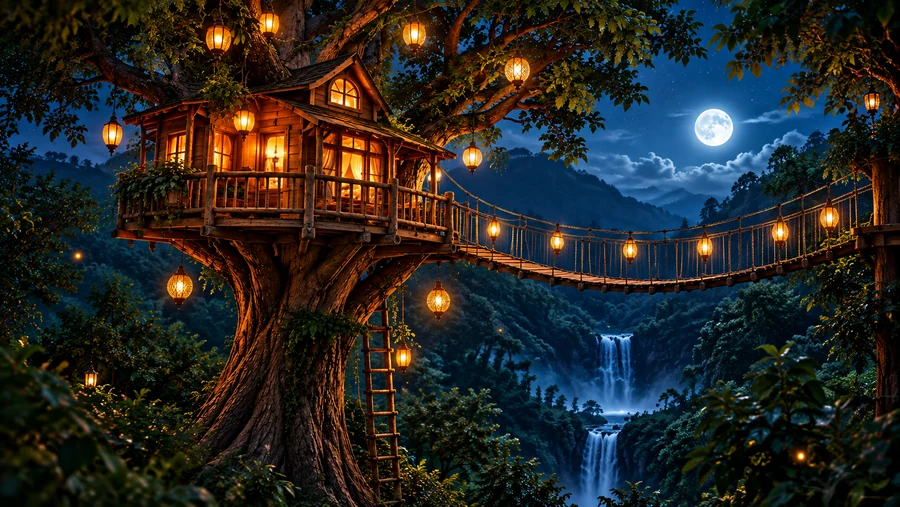
The key thing to understand is that the photo stays the anchor. The AI is not inventing a brand new scene from scratch. It is using your image as the first frame and then predicting how that scene might believably move. A portrait might get a slight head turn and a blink. A landscape might get drifting clouds and rippling water. A product shot might get a slow camera push.
This is different from a slideshow or a pan-and-zoom effect, where a static image is simply slid across the screen. With AI image to video, the pixels themselves change. Hair moves, light shifts, and elements that were frozen start to behave like real footage.
Why people turn photos into video
Most platforms now favor video. Reels, Shorts, TikTok, and Stories all push moving content harder than a single static image, so a clip tends to hold attention longer and gets seen by more people. Turning a photo you already have into a short video is one of the fastest ways to feed those formats without setting up a shoot.
It is also practical. You may have exactly one good photo of a moment, a product, or a person, and no way to reshoot it. Maybe the event is over, the product is not in front of you, or the perfect light has passed. Animating that single frame lets you get motion out of an asset you can never recreate.
And it lowers the cost of trying ideas. Filming, lighting, and editing real video takes time and gear. If you just want to test whether a moving version of an image performs better, generating a clip in a couple of minutes is a low-risk way to find out before you invest in anything bigger.
How the AI animates a still photo, in plain words
Under the hood, the model has been trained on a very large amount of video. From that, it learned what natural motion looks like: how fabric folds when someone moves, how water reflects light, how a face shifts when it smiles, how a camera tends to glide. It does not know your specific scene, but it knows the patterns of movement in scenes like yours.
When you give it your photo, it treats that image as the starting point and generates each following frame by asking, in effect, what would plausibly come next. It keeps the overall look, colors, and subject consistent while introducing small, believable changes frame to frame. A short text prompt from you nudges that prediction toward the motion you actually want.
Because every frame is generated rather than filmed, the model is making educated guesses. That is why it shines with gentle, natural movement and struggles with anything that needs exact physical accuracy, like precise text, fast complex action, or a hand doing fine detailed work. Knowing that boundary up front saves you a lot of frustration.
Step by step: turn your photo into a video in Magical Studio
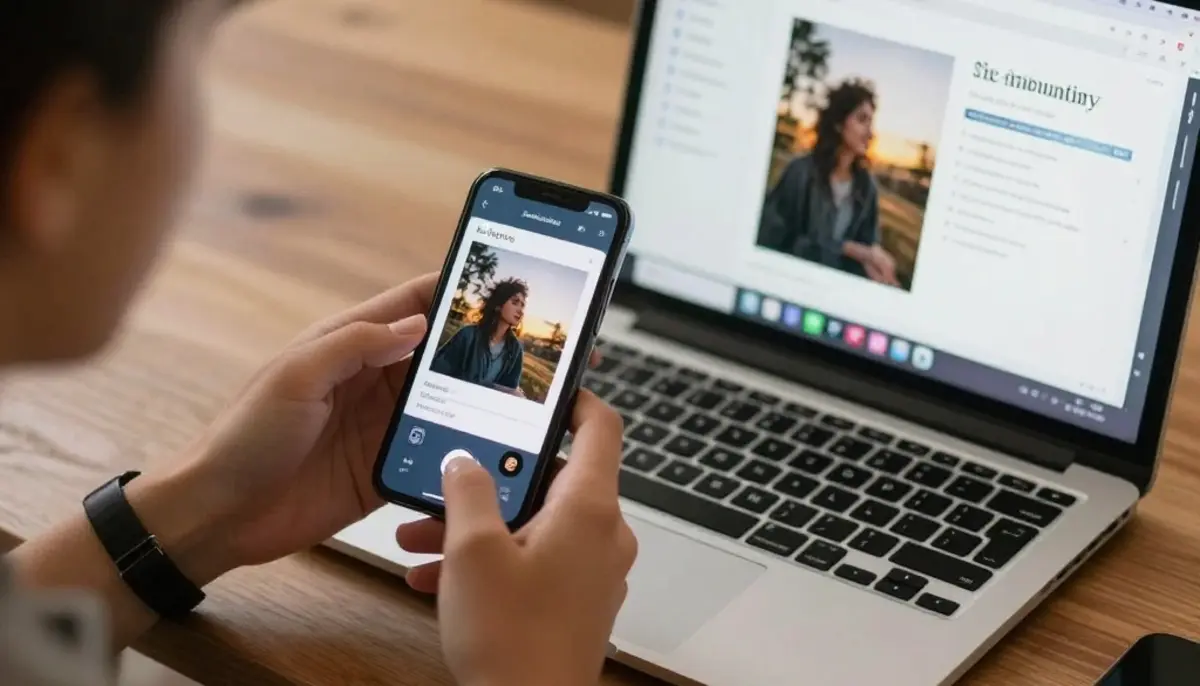
Magical Studio runs in your browser, so there is nothing to install. Open the Image to Video tool, sign in with Google, and you are ready. Every account gets free daily generations to try, so you can make your first clip without paying anything.
First, upload your photo. Pick the cleanest, sharpest image you have, since the AI animates what it is given and a blurry source will only get blurrier in motion. A clear subject and good lighting make a big difference here.
Second, describe the motion you want in the prompt box. Keep it short and concrete, for example, slow camera push in, gentle wind in the hair, soft blinking. You are telling the model what should move and how, not rewriting the whole scene.
Third, choose your format and aspect ratio to match where the video will live. Vertical for Reels, Shorts, and Stories. Square or landscape for feed posts or a website. Then start the generation. It runs asynchronously, so you can wait a short while as the clip is produced.
Finally, review the result. If the motion is too strong, too weak, or drifts in a direction you did not want, adjust the prompt and generate again. Treat the first attempt as a draft, not a final answer. When you are happy, download the clip and post it.
Writing motion prompts that actually work
A good motion prompt is specific about two things: what moves and how much. Vague prompts like make it cinematic give the model too much freedom and often produce strange results. Instead, name the subject and the action, for example, woman smiles softly and tilts her head, or camera slowly pushes toward the building.
Separate camera motion from subject motion in your mind. Camera motion is the lens moving: push in, pull back, slow pan left, gentle orbit. Subject motion is the thing in the frame moving: hair sways, water ripples, steam rises, eyes blink. You can ask for both, but say each clearly so the model does not blend them into a mess.
Lean toward subtle. Words like slow, gentle, slight, and soft tend to produce clean, believable clips. Big asks like running, spinning fast, or jumping around are where AI motion most often breaks down, warping faces and limbs. If you want energy, build it through camera movement and pacing rather than asking the subject to do something dramatic.
If a clip comes out wrong, change one thing at a time. Reduce the strength of the motion, swap a verb, or remove a competing instruction. Small targeted edits teach you what your prompt is doing far better than rewriting the whole thing at once.
Choosing the right format and aspect ratio
Aspect ratio is just the shape of the frame, and it matters because each platform crops differently. Vertical, roughly nine by sixteen, fills the screen on phones and is what you want for Reels, TikTok, YouTube Shorts, and Instagram or Facebook Stories. Pick vertical whenever the video is meant to be watched full screen on a phone.
Square, one by one, is a safe choice for feed posts that need to look fine on both desktop and mobile without awkward cropping. Landscape, sixteen by nine, suits websites, YouTube in the regular player, presentations, and anywhere the video sits inside a wider layout.
Decide the destination before you generate, not after. If you make a landscape clip and then need it vertical, cropping in often cuts off your subject or wastes the motion you generated at the edges. Matching the aspect ratio to the final placement from the start gives you the cleanest result and saves a regeneration.
Real use cases worth trying
Social posts and short-form video are the obvious win. Take a strong photo from a recent post and animate it for a Reel or Story so the same content earns a second life in a format the algorithm pushes harder. A still that did well as a photo often does even better with a little motion.
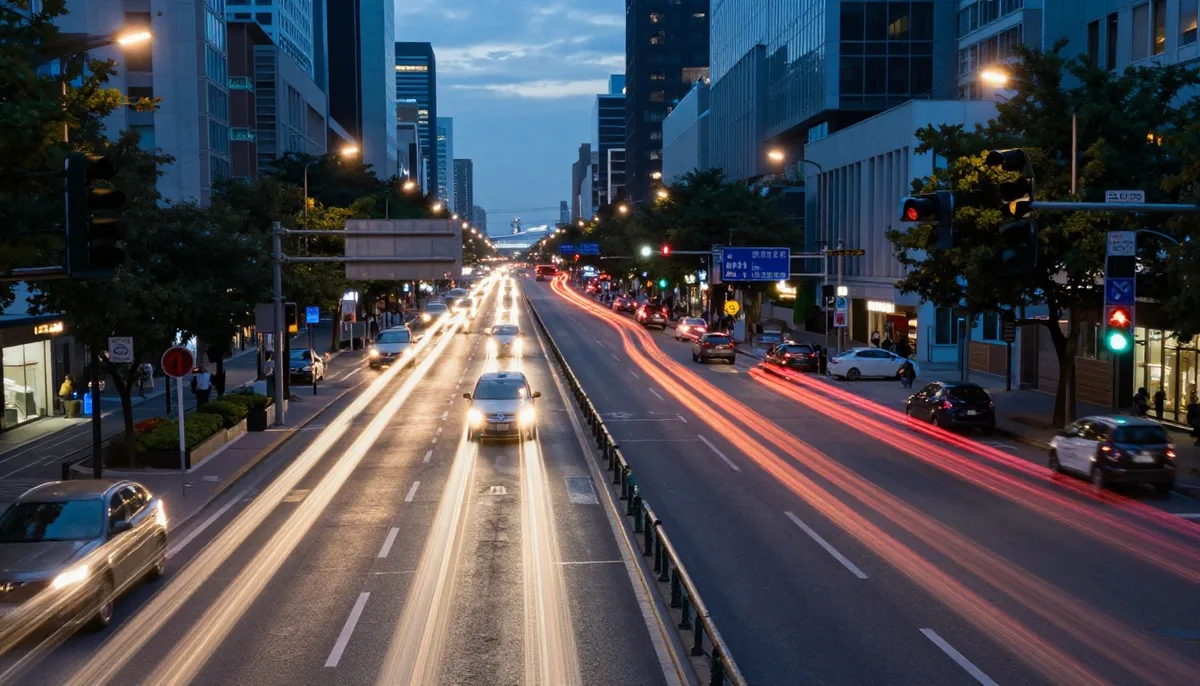
Ads and product promos benefit too. A clean product photo with a slow camera push or a subtle highlight moving across the surface feels more premium than a flat image, and you can produce several variations quickly to test which one holds attention. It is a cheap way to add polish before committing to a full video shoot.
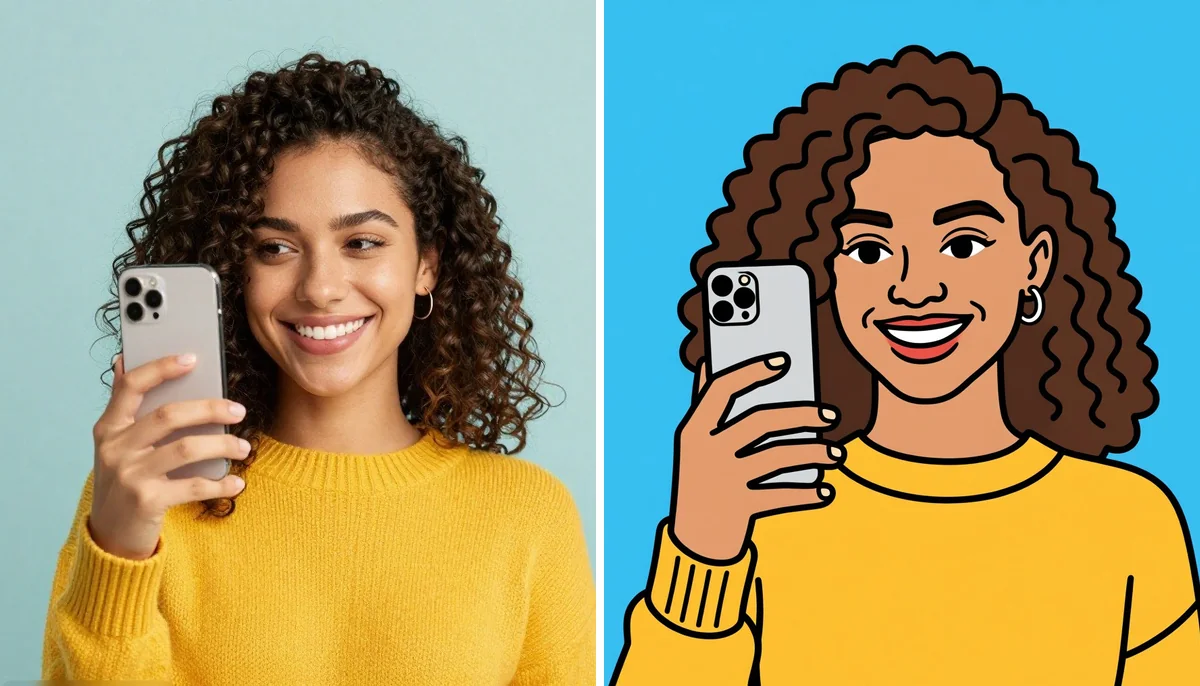
Profiles and personal branding are another fit. A subtle animated portrait for a banner, an about page, or a link-in-bio video adds a human, living quality that a static headshot cannot. Keep the motion small here, since a gentle blink and a soft camera drift read as natural while anything bigger starts to feel uncanny.
It also works well alongside other edits. You might first run a photo through AI Enhance to sharpen it or through AI Upscale for more resolution, then animate the cleaned-up version so the motion has crisp detail to work with. Starting from a better still almost always yields a better clip.
Tips for getting better results
Start with the best possible source image. Sharp focus, even lighting, and a clear subject give the model good information to work with. If your photo is soft or low resolution, fix that first; animating a weak image just produces a weak video. A quick pass through an enhancer or upscaler before you animate is often the single biggest improvement you can make.
Keep clips short and motion gentle. The first few seconds carry almost all the impact on social feeds anyway, and shorter generations with restrained movement are far less likely to glitch. You can always loop a clean two or three second clip rather than risk a longer one falling apart.
Generate a few versions and pick the best. AI output varies between runs, so the same photo and prompt can give you a slightly different clip each time. Making two or three and choosing the strongest is normal practice, not a sign you did something wrong.
Watch the edges and the hands. These are the areas where AI motion tends to wobble first. If a clip looks mostly great but the background warps or fingers smear, try reducing the motion strength or simplifying the prompt rather than accepting the artifact.
Common mistakes to avoid
The most common mistake is asking for too much motion. Dramatic action, fast movement, and complex multi-part instructions are exactly where these models break, producing melting faces and bending limbs. When in doubt, ask for less. Subtle almost always looks more professional than busy.
The second is starting from a bad image and expecting the AI to fix it. Image to video animates what is there; it does not clean up or sharpen your source. Blur, noise, and compression artifacts all carry into the video and often look worse in motion. Fix the still first.
The third is picking the wrong aspect ratio and cropping later. As covered above, this wastes your generated motion and can cut off the subject. Choose the shape that matches your destination before you generate.
Finally, do not expect accurate text or fine detail to survive. If your photo contains a logo, a sign, or readable words, the AI may warp them as it generates frames. For anything where text accuracy matters, keep those elements out of the motion or add them back in a separate edit afterward.
Honest limits and a note on ethics
Be realistic about what this technology can and cannot do today. It is excellent at gentle, natural movement and ambient motion. It is unreliable at precise physics, fast or complex action, perfectly steady text, and detailed hand movements. If your idea depends on any of those, plan for some trial and error, or shoot real footage instead. Treating image to video as a tool for subtle life rather than full filmmaking will keep your expectations grounded.
On the ethics side, only animate photos you have the right to use. Animating an image of a real person, especially to make them appear to say or do something, raises clear consent and misrepresentation concerns. Get permission before animating someone else, and be transparent that a clip is AI generated when the context could mislead people. This matters even more for anything that could be mistaken for genuine footage of a real event.
Used honestly, image to video is a practical way to get more out of the photos you already own. When you are ready, open the Image to Video tool, try it on your free daily generations, and if you find yourself making clips often, the Unlimited plan removes the daily limit so you can iterate freely. You can also browse the full set of AI tools to clean up your source images before you animate them.
Try unlimited AI photo editing
Run every AI tool as much as you want, right in your browser.