How to Colorize Black and White Photos with AI (Step-by-Step)
In this guide
What AI photo colorization actually is
AI colorization takes a black and white or sepia image and adds color to it automatically. You do not paint anything by hand. You hand the photo to a model, and it returns a version where skin, sky, grass, clothing, and other surfaces have plausible color.
The key word is plausible. The original photo never recorded color information, so the AI is making an educated guess about what each area probably looked like. For most everyday scenes those guesses land close to reality, which is why a good colorized portrait can feel surprisingly natural.
This is different from manual colorizing, where an artist researches a subject and paints each region with chosen tones. AI does the heavy lifting in seconds, and you can always touch up afterward if you want more control. For a fast first pass, the Photo Colorizer handles the whole job in your browser.
Why people colorize old photos
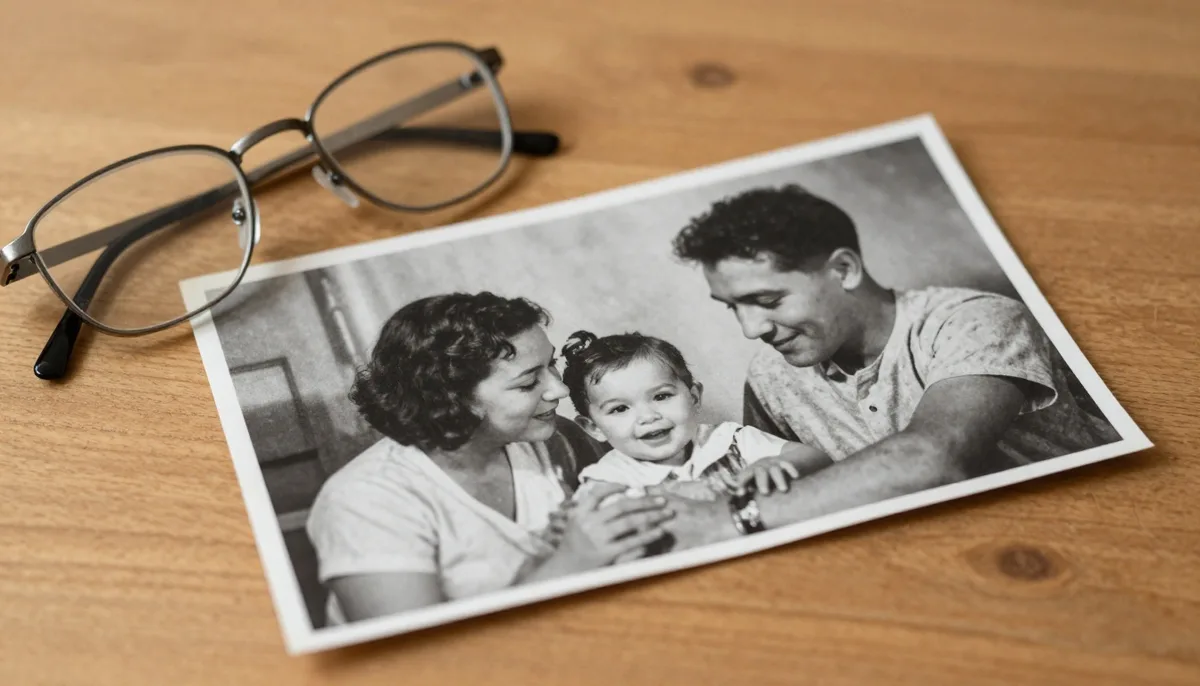
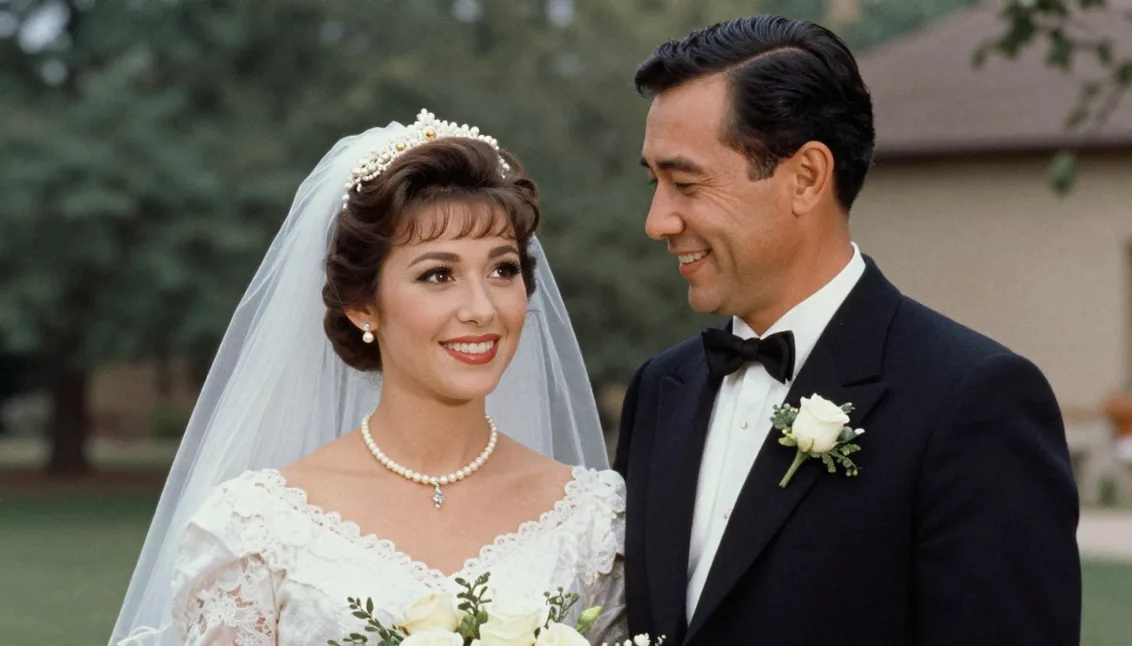
The most common reason is emotional. A grandparent's wedding portrait or a childhood photo feels closer and more present in color. Faces read more clearly, and small details you skimmed past in grayscale suddenly stand out.
Family historians and genealogists use colorization to bring archives to life for younger relatives who never met the people in the frames. A color photo invites questions and stories in a way a faded gray print sometimes does not.
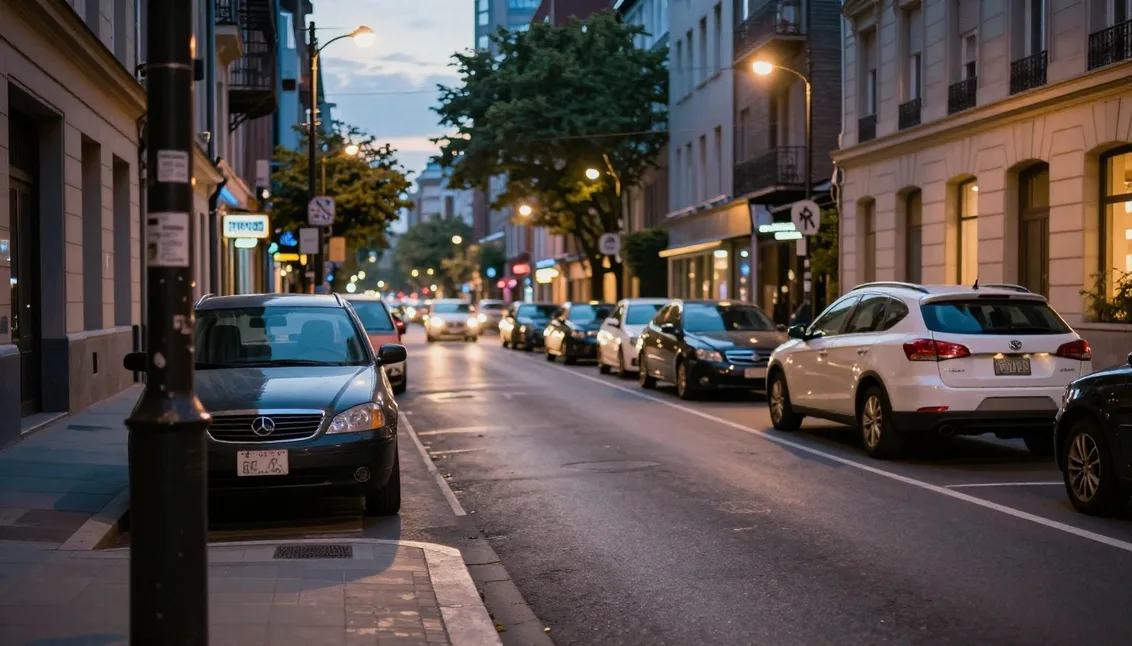
There are practical reasons too. Designers, teachers, and content creators colorize historical images to make timelines and presentations feel less distant. A colorized street scene from decades ago helps an audience picture the moment instead of filing it away as old.
How the AI predicts realistic colors, in plain words
A colorization model has looked at a very large number of color photos during training. Over all those examples it learned patterns, things like skin tends to fall in certain warm ranges, the sky is usually some shade of blue, foliage is green, and lips are a little redder than the cheeks around them.
When you feed it a black and white image, the model reads the shapes and brightness values and recognizes what it is looking at. It sees a face, so it applies skin tones. It sees an open upper region, so it leans toward sky color. It works region by region, blending so the result looks continuous rather than patchy.
Because it relies on what is typical, the AI is confident about common things and uncertain about specific ones. It can guess that a shirt is fabric, but it has no way to know the shirt was actually red and not blue. That single limitation explains most of what colorization gets right and most of what it gets wrong.
Step by step: colorize a photo in Magical Studio
Start by opening the Photo Colorizer. Everything runs in the browser, so there is nothing to install. Sign in with Google and you get free daily generations to try it before deciding on anything.
Upload your black and white or sepia image. A clear, well lit scan works best, so use the highest quality version you have rather than a screenshot or a photo of a photo. Then run the colorize step and wait a few seconds for the model to process it.
When the result appears, compare it against the original. Look closely at faces, hands, and any large flat areas like walls or sky, since those are where the eye notices wrong color fastest. If you are happy, download it. If something looks off, try a cleaner scan or adjust the photo first, which the next sections cover.
If you want to use the same picture across several tools, you can move from colorizing into the rest of the tool collection without re-uploading from scratch each time.
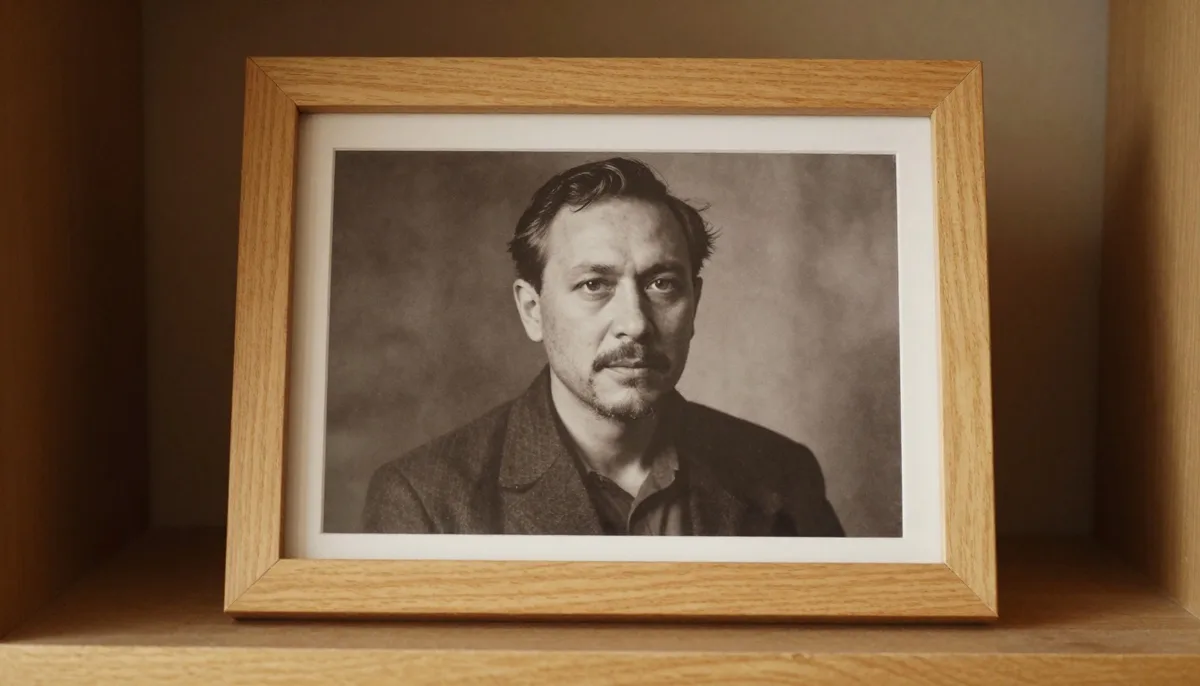
Enhance and clean up before you colorize
Colorization works best when the AI can clearly see what is in the photo. Scratches, heavy grain, dust, and blur all confuse it, and confused models produce muddy or smeared color.
If your source is soft or noisy, run it through AI Enhance first to sharpen detail and reduce the worst of the damage. A cleaner input gives the colorizer better edges and surfaces to reason about, which usually means cleaner color out the other side.
If the photo is also small or low resolution, consider AI Upscale to raise the pixel count before colorizing. A larger, sharper image gives the model more to work with and makes the final color print or share look noticeably better. Enhance and upscale first, colorize second is a reliable order for old prints.
Tips for the most realistic results
Scan at a higher resolution than you think you need. Flatbed scans beat phone snapshots because they avoid glare, warped angles, and reflected light that the AI can mistake for real color cues.
Crop out borders, photo album corners, and white frames before colorizing. The model treats everything in the frame as part of the image, and a bright white border can pull its color decisions in odd directions.
Keep your expectations anchored to the era and subject. If you know the real color of a uniform, a car, or a dress, do not be surprised when the AI guesses something else, and plan to touch it up afterward. The AI is a strong starting point, not a research assistant.
Run the photo more than once if a tool offers any variation, and keep the version that handles faces best. Faces are the part viewers judge hardest, so prioritize natural skin over a perfect background.
Common mistakes to avoid
The biggest mistake is feeding the AI a bad source and blaming the result. A blurry, compressed, or tiny image cannot become a crisp color photo, because the detail simply is not there to color in.
Another is over-trusting the colors. People sometimes present a colorized historical photo as fact, when the AI invented every tone. Treat the output as an interpretation, especially for anything where accuracy matters.
Skipping the before and after comparison is a quiet mistake too. Colorization can subtly shift skin tone toward orange or wash out a sky, and these are easy to miss unless you flip between the two versions. Always check at full size before you call it done.
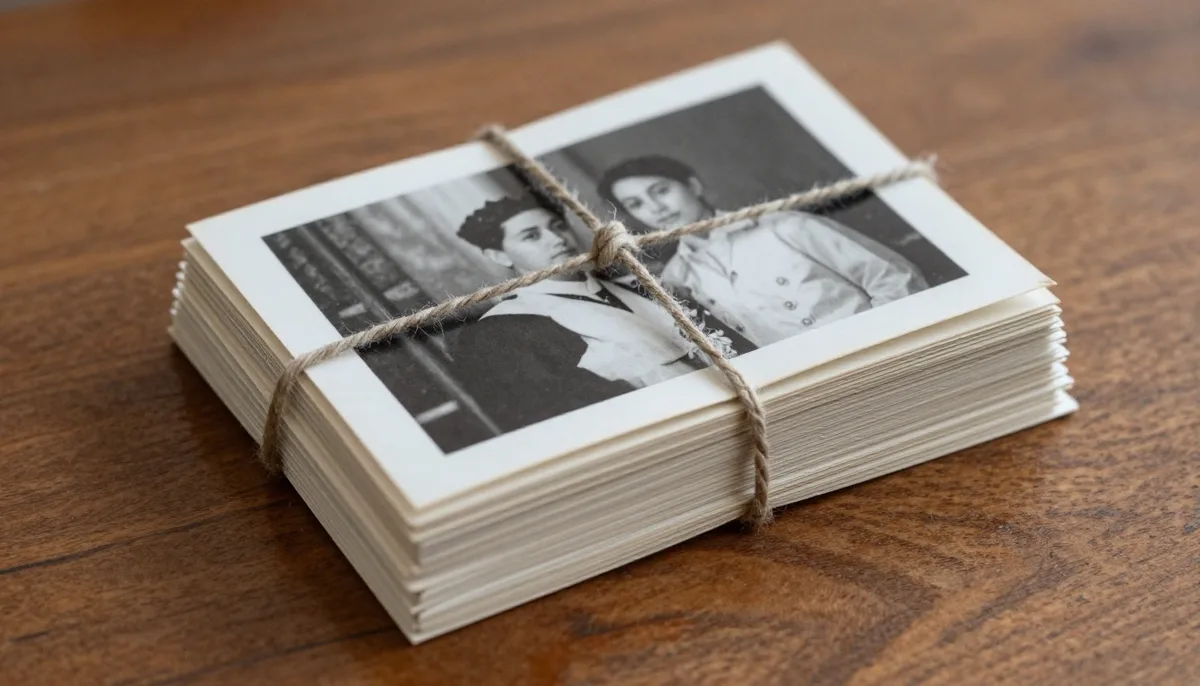
Restoring old family and historical photos
Old family prints are the ideal use case, and they are also the most fragile inputs. Decades of fading, creases, and yellowing mean the cleanup steps matter more here than anywhere else. Enhance and, if needed, upscale before you colorize.
For damaged areas like torn corners or large stains, understand that colorization will not rebuild missing content. It colors what it can see. If a face is half missing, the AI cannot invent the rest, so repair what you can in earlier steps and accept the limits of the original.
When you share restored photos with relatives, a small note that the color is an AI estimate keeps the story honest. Most families love the result anyway, and being upfront about it avoids passing a guess along as a documented fact for the next generation.
Realistic expectations and limits
Colorization is genuinely good at skin, skies, greenery, wood, and everyday scenes. It is weak at anything whose color was a specific choice, so brightly patterned fabrics, painted signs, logos, and unusual paint jobs are where it guesses and sometimes misses.
Fine detail and edges can also trip it up. Strands of hair, jewelry, and busy backgrounds may pick up slightly wrong or bleeding color. None of this means the tool failed, it means you have a strong draft that may want a light manual touch in a couple of spots.
Treat the AI as a fast, capable first pass. For casual sharing and reconnecting with old memories it is more than enough on its own. For museum-grade or archival work, use it as a starting layer and verify any color that you intend to present as historically accurate.
Where to go after colorizing
Once a photo is in color, you may want to do more with it. You can remove a distracting background with the Background Remover to drop a restored portrait onto a clean card or print, or keep enhancing detail for a larger frame.
If you are colorizing a batch of family photos and do not want to count each edit, the Unlimited plan removes that ceiling so you can work through a whole archive in one sitting. Free daily generations are there first so you can confirm the results meet your standard before subscribing.
Colorizing is also a nice on-ramp to the rest of the editor. After you have brought a few old photos back to life, browsing the full tools page shows what else you can do with the same image without starting over.
Try unlimited AI photo editing
Run every AI tool as much as you want, right in your browser.