How to Fix Blurry and Low-Quality Photos with AI
In this guide
What a blurry or low-quality photo actually looks like
Before you fix a photo, it helps to know what kind of problem you are dealing with, because not all bad photos are bad in the same way. The word "blurry" gets used as a catch-all, but the underlying causes are different and they respond differently to editing.
Motion blur happens when the camera or the subject moved while the shutter was open, so edges smear in one direction. Soft focus is when the lens locked onto the wrong distance, so the subject looks fuzzy while something behind or in front of it is sharp. Noise is the speckled, grainy texture you see in photos shot in low light or at a high ISO, where the sensor guessed at color and brightness. Low-light photos also tend to look muddy and dim, with crushed shadows and washed-out detail.
Then there is low resolution, which is a separate issue. A small image is not blurry so much as it simply does not contain many pixels, so it looks soft and pixelated when you view it large. Knowing which of these you have tells you whether you need an enhancer, an upscaler, or both.
Why people reach for an AI enhancer
Most people do not have the original RAW file, perfect lighting, or a second chance to retake the shot. They have the photo they have, and it has to work for something now. That is the core reason AI enhancers became popular. They turn a one-shot moment that came out poorly into something usable.
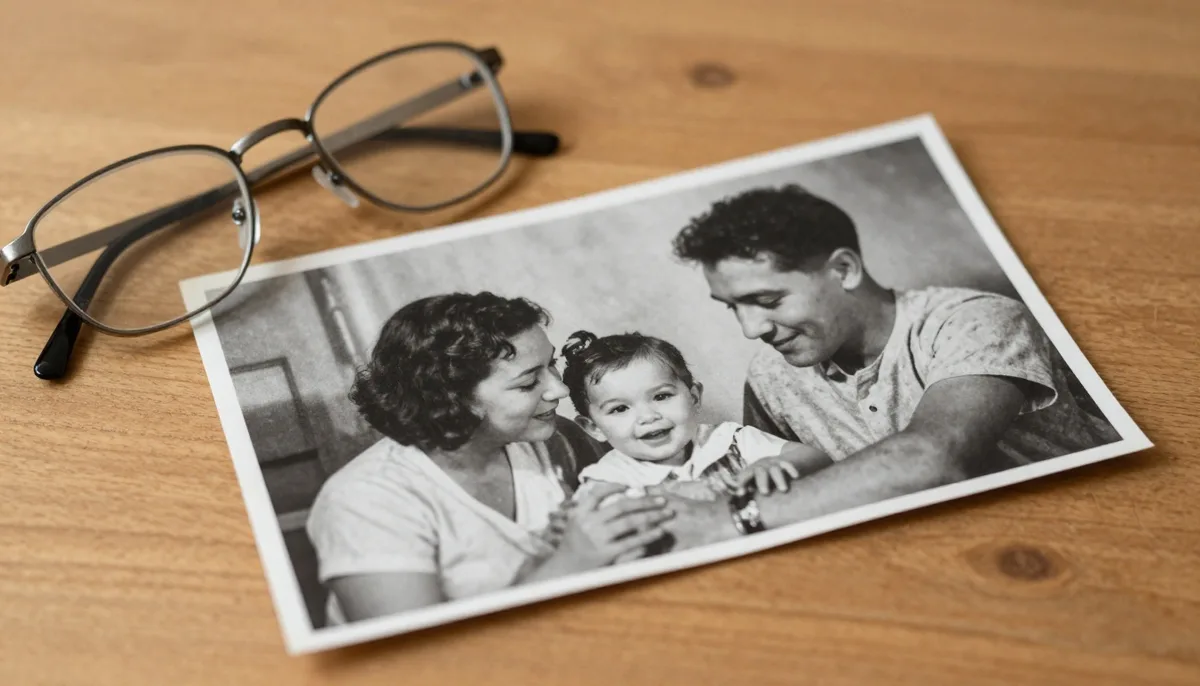
The use cases are everyday and practical. You want to print an old family photo for a frame, but it is grainy and soft. You are selling something online and your product photo looks dull and noisy. You have a screenshot or a shot pulled from a video that is too small and mushy to use on a page. You found a treasured photo of a grandparent that has aged badly. In all of these, retaking the photo is not an option, so cleaning up the existing one is the only path forward.
There is also a speed argument. Doing this kind of cleanup by hand in traditional editing software takes skill and patience. An AI enhancer does the heavy lifting in seconds, which matters when you have a batch of photos or you just do not want to learn a complicated tool.
How an AI photo enhancer works, in plain words
A traditional sharpening slider just increases the contrast along edges that already exist. It cannot add anything that is not there, and pushed too far it makes photos look crunchy and fake. An AI enhancer works differently. It has been trained on a huge number of image pairs, where it saw the same scene in both a degraded version and a clean version, over and over.
From all that training, the model learned what real-world detail tends to look like. It learned the texture of skin, the pattern of hair, the look of fabric, the edges of text. So when you hand it a blurry or noisy photo, it does not just sharpen the pixels you gave it. It makes an informed prediction about what the clean version probably looked like, and it reconstructs that. This is why a good enhancer can recover detail that a sharpening slider never could.
The honest caveat is right there in that description. The AI is predicting, not remembering. It does not know what was actually in the original scene, so it fills gaps with the most plausible detail it learned. Most of the time that prediction is convincing and accurate. Sometimes, especially on faces or fine text, it can invent detail that was not really there. Keep that in mind and you will use the tool well.
Step by step: enhance a photo in Magical Studio
Magical Studio runs in your browser, so there is nothing to install and nothing to download to your machine first. Here is the full flow from start to finished file.
First, open the AI Enhance tool in your browser. Sign in with your Google account if you have not already. Every account gets free daily generations, so you can try the enhancer on a real photo before deciding whether you want more.
Second, upload the photo you want to fix. Drag it onto the page or click to browse and select it. Use the best copy of the image you have. If you have a larger or less compressed version sitting somewhere, start from that one rather than a tiny copy pulled from a chat app.
Third, run the enhancement and wait a few seconds while the model processes it. When it finishes, compare the result against your original. Look closely at the parts that matter most for your use, usually faces, text, or the main subject, and check that the cleanup looks natural rather than plasticky.
Fourth, if the result looks good, download it. If it does not, you have options covered in the tips section below. And if the photo was sharp but simply too small, the next step is to send it through upscaling, which we cover in a moment.
Enhance versus upscale, and when to use both
These two tools solve different problems and people mix them up constantly. Enhancing is about quality. It removes noise, recovers softness, and makes an image look cleaner and clearer at its current size. Upscaling is about size. It increases the pixel dimensions of an image so it can be viewed or printed larger without turning into a blocky mess.
Think of it this way. If your photo looks bad at the size it already is, you want to enhance it. If your photo looks fine but is just too small for where you need to use it, you want to upscale it. A grainy phone photo at a decent resolution needs enhancing. A crisp but tiny thumbnail needs upscaling.
The two work well together, and the order usually matters. Clean the image up first with the enhancer so you are not feeding noise and blur into the upscaler, then upscale the cleaned result to the size you need. Doing it in that order means the upscaler is enlarging good detail instead of magnifying flaws. This combination is what gets a small, rough old photo to a size you can actually print and frame.
Tips for getting the best result
Start from the highest-quality source you can find. Every time an image gets re-saved, screenshotted, or sent through a messaging app, it loses a little detail to compression. If you have the original file or a less-compressed copy, use that. The enhancer can only work with what you give it.
Match your expectations to how the photo will be used. A result that looks slightly soft on a giant monitor at full zoom can look perfectly sharp on a phone screen or in a small print. Judge the photo at the size and distance people will actually see it, not zoomed to 400 percent where every editing tool on earth looks imperfect.
Pay special attention to faces and text. These are the two areas where the human eye is most sensitive and where AI reconstruction is most likely to look off. If the enhanced version looks great everywhere except a face, that is the spot to scrutinize. Sometimes a gentler result that keeps a little softness looks more believable than a heavily reconstructed one.
Finally, always keep your original file. Enhancing creates a new image, and you may want to come back, try a different approach, or combine the enhancer with upscaling later. Never overwrite the only copy you have.
Common mistakes to avoid
The most common mistake is expecting an enhancer to undo extreme damage. A photo that is heavily blurred, almost entirely dark, or shrunk to a tiny size has lost most of its real information. The AI can improve it, but it cannot conjure back detail that no longer exists anywhere in the file. Going in with realistic expectations saves a lot of frustration.
Another mistake is enhancing an already-good photo and assuming more processing is always better. If your image is already sharp and clean, running it through an enhancer can flatten texture or make skin look waxy. Use these tools to fix problems, not as a reflex on every photo.
People also reach for the enhancer when they actually need the upscaler, and vice versa. If you find yourself disappointed that an enhanced photo is still small, you wanted upscaling. If you upscaled something and it is now big but still grainy, you skipped the enhancing step. Knowing which problem you have, as covered earlier, prevents this.
One more: judging the result only at extreme zoom. Editors zoom in to inspect, but no viewer sees your photo that way. Always step back and look at the whole image at normal size before deciding it failed.
Real situations where this helps
Old and inherited family photos are the classic case. Scans of prints from decades ago are often soft, grainy, and faded. An enhancer cleans up the grain and recovers clarity, and if the photo is also small, following up with upscaling gets it to a printable size. If the photo is also black and white, you might pair the cleanup with the photo colorizer to bring it fully back to life.
Online sellers and small businesses use enhancers constantly. A product listing photo that came out dim or noisy under bad indoor lighting can be cleaned up to look more professional, which matters when a buyer is deciding whether to trust what they see.
Content creators pull frames from video, grab screenshots, or work with images that are simply too rough to publish. Enhancing makes a borderline image presentable. Profile pictures are another everyday case, where a slightly soft selfie becomes crisp enough to use confidently.
And for anyone restoring memories, enhancement is often the first step in a longer cleanup. Once a photo is clean, you can take it further with other tools, like swapping it onto something new or removing a distracting background, depending on what you need.
What an AI enhancer cannot fix
It is worth being blunt about the limits so you are not let down. An enhancer cannot recover detail that was never captured or has been completely destroyed. If a face is a featureless smudge of a few pixels, the AI can make a plausible face, but it cannot bring back the actual person's features, because that information is simply gone.
It cannot reliably read and reconstruct text that has dissolved into mush. It may produce something text-shaped, but it can get letters and numbers wrong, which matters a great deal if the text is a serial number, a sign, or anything where accuracy counts. Always double-check reconstructed text against another source.
It cannot fix composition, exposure decisions, or a subject that was out of frame. If the moment was missed, no amount of processing brings it back. And it cannot guarantee a result that holds up at poster size from a tiny source. Enhancing plus upscaling extends how far you can push an image, but there is still a ceiling set by how much real information the original holds.
On the ethics side, remember that because the AI reconstructs detail rather than revealing hidden truth, an enhanced photo should not be treated as forensic evidence of what was really there. For personal memories, listings, and content, that is no problem at all. Just do not present AI-reconstructed faces or text as a factual record of the original scene.
Where to go from here
If you have a photo that is bothering you, the fastest way to learn what is possible is to try it on that exact image rather than reading more about it. Open the AI Enhance tool, upload your photo, and see what comes back. The free daily generations on every account are there precisely so you can test it on something real before committing.
From there, build the simple workflow that fits your goal. Enhance to fix quality. Upscale to fix size. Run both, enhance first, when a photo needs help on both fronts. That sequence covers the large majority of blurry, grainy, low-light, and too-small photos people deal with.
And when you are done rescuing a single image, it is worth knowing the rest of the toolkit lives in the same place. You can browse all the tools to colorize, remove backgrounds, or take a still photo into image to video, all in the same browser tab with no installs.
Try unlimited AI photo editing
Run every AI tool as much as you want, right in your browser.