AI Photo Editor vs Photoshop: Which Should You Use in 2026?
In this guide
The short answer first
If you want a fast result and you do not want to learn software, an AI photo editor is the better choice. You upload a photo, pick an action like remove the background or upscale, and you get an edit in seconds. There is almost nothing to learn.
If you need precise manual control, where you decide every pixel, every layer, and every blend, Photoshop is still the stronger tool. That control comes with a real learning curve and a subscription cost.
Most people do not actually need one or the other forever. The honest answer is that they solve different problems, and many users get the best results by reaching for whichever one fits the task in front of them. The rest of this guide breaks that down so you can pick with confidence.
What each tool actually is
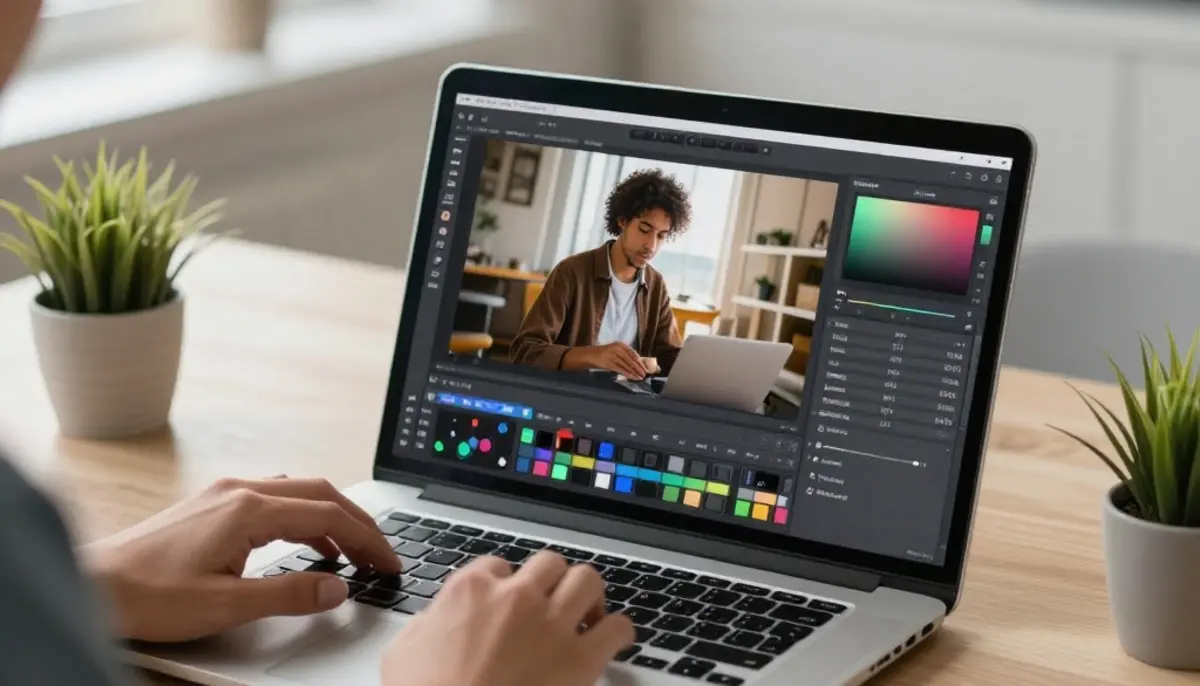
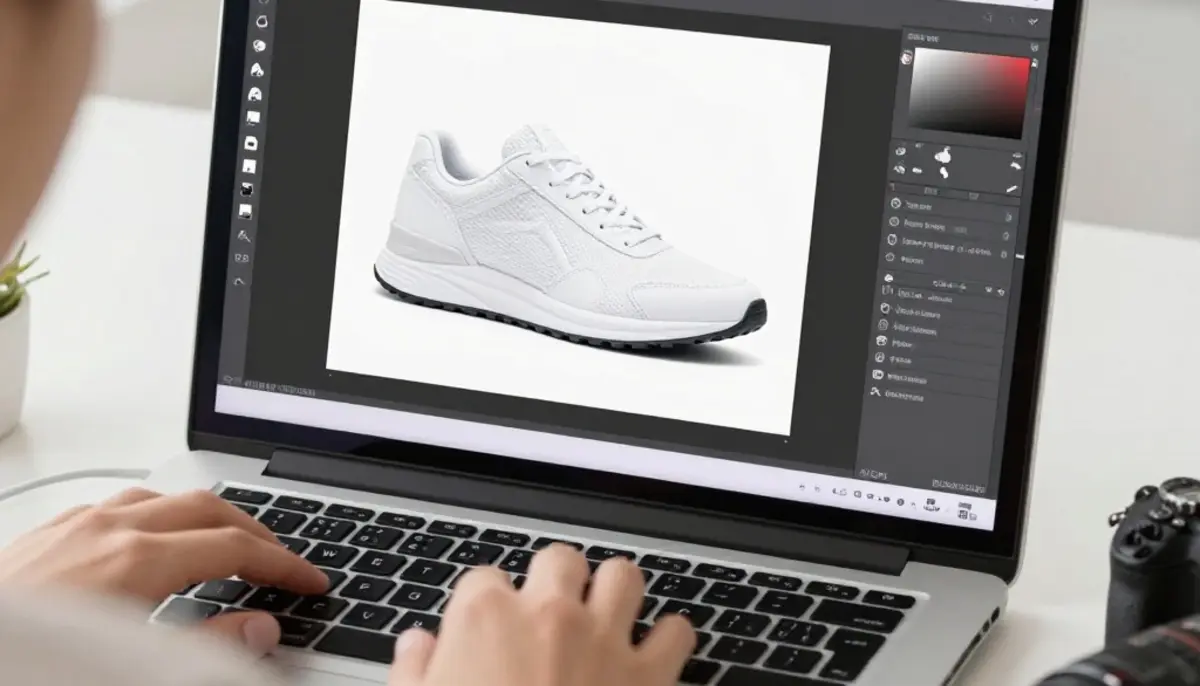
Photoshop is a professional manual editor. You work with layers, masks, brushes, selections, and adjustment tools. Nothing happens unless you tell it to happen, which is exactly why professionals like it. You are the one making every decision.
An AI photo editor works the opposite way. Instead of giving you brushes and asking you to do the work, it does the work for you based on a model trained on huge numbers of images. You describe the outcome you want, or pick a one-click action, and the tool produces it.
Magical Studio is a browser-based AI editor. There is nothing to install, you sign in with Google, and every account gets free daily generations to try. You can browse the full set of one-click tools on the tools page to see what kinds of edits are handled automatically.
How AI editing works, in plain words
You do not need the technical background to use it, but a simple mental model helps you get better results. An AI model has seen millions of photos and has learned patterns: what a sky looks like, what hair edges look like, what a face looks like, how lighting falls on skin.
When you ask it to remove a background or enhance a blurry photo, it is not following hand-written rules the way older filters did. It is predicting what the corrected image should look like based on everything it has learned. That is why it can do in one step what used to take careful manual masking.
This also explains its weak spots. The AI is making an educated prediction, not measuring reality. It is excellent at common, well-represented cases and less reliable on unusual ones, like odd textures, rare objects, or tiny text. Knowing that helps you trust it where it is strong and double-check it where it is not.
Learning curve: not close
This is the clearest gap between the two. Photoshop is deep, and depth takes time. Even confident users spend hours learning masks, selections, color tools, and shortcuts before edits feel quick. If you only edit photos occasionally, that investment is hard to justify.
An AI editor removes almost all of that. The skill you need is knowing what you want, not knowing how to do it. If you can describe remove this background or make this sharper, you can get the result.
For most casual users, hobbyists, sellers, and social media creators, the low learning curve is the single biggest reason to choose AI. You spend your time on the photo, not on the software.
Speed and common tasks
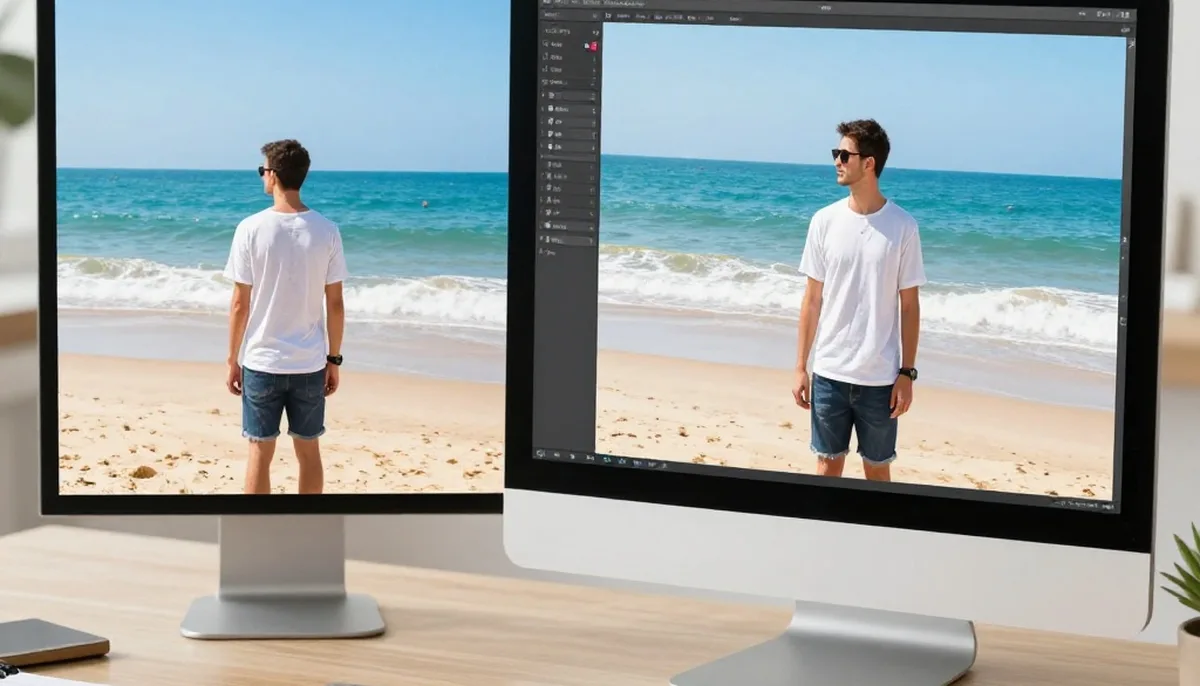
For everyday edits, AI is dramatically faster. Removing a background by hand in Photoshop means selecting a subject, refining the edge, and cleaning up stray pixels. With a background remover, you upload and it is done, then you adjust only if needed.
The same speed gap shows up across common jobs. Making a small photo bigger without it falling apart used to need careful work. With AI upscale you raise the resolution in one step, and with AI enhance you sharpen and clean up a soft or low quality shot quickly.
Photoshop catches up, and pulls ahead, when the task is unusual or highly specific. If you need to composite three images with exact lighting, retouch a product to brand standards, or fix one stubborn corner that the AI keeps getting slightly wrong, manual control wins because you are not negotiating with a prediction.
Cost: how the two models differ
Photoshop is sold as an ongoing subscription. You pay every month or year whether you use it heavily or barely touch it. For working professionals that is easy to justify. For someone who edits a few photos a month, it can feel like a lot for what you actually use.
Magical Studio uses a different model. Every account gets free daily generations, so you can try real edits before paying anything. If you edit a lot, there is an optional Unlimited plan for unlimited edits with no daily limit. If you edit a little, the free daily generations may be all you need.
The practical takeaway is about your volume. Light, occasional editing usually costs less, or nothing, with an AI tool. Heavy daily professional work is where a full editor's subscription starts to pay for itself in capability.
Control: where Photoshop still wins
It is worth being honest here, because this is the real trade-off. AI gives you speed by making decisions for you. Photoshop gives you control by making you do the work. You cannot have both at full strength in the same action.
If your job depends on exact, repeatable, pixel-level precision, where a client will notice a one-pixel edge or a slightly-off skin tone, manual editing is still the safer tool. You can zoom in, mask by hand, and correct exactly what you want without affecting anything else.
AI editors are improving on control, and many now let you guide the result or redo it. But if precision is the whole point of the job, treat Photoshop as the finisher and AI as the fast first pass.
A step-by-step edit in Magical Studio
Here is the full flow so you know exactly what to expect. First, open the tools page and pick the action that matches your goal, for example background removal, enhance, upscale, colorize, or a fun style.
Second, sign in with Google. Third, upload your photo. Use the highest quality original you have, because the AI has more to work with and the result will be cleaner. Fourth, run the tool. Most actions finish in seconds.
Fifth, review the result honestly at full size, not just the thumbnail. Check edges, faces, and any fine detail. If something looks off, try again with a better source image or a different tool. Sixth, download the finished file. That is the entire process, and none of it requires editing skills.
Tips for the best AI results
Start with the best source image you have. AI predicts from what you give it, so a sharp, well-lit original almost always beats a dark, blurry one. This single habit improves results more than anything else.
Match the tool to the task instead of forcing one tool to do everything. Use enhance for softness and quality, upscale for size, and the background remover for cutouts. Stacking the right steps beats one rough pass.
Always review at full resolution. The most common AI errors hide in small areas: a chewed-up hair edge, a smoothed-over face, a warped bit of text. Zoom in before you trust it. And when an edit matters, keep your original file so you can redo it cleanly.
Common mistakes to avoid
The biggest mistake is expecting AI to invent detail that was never there. If a photo is heavily blurred or very low resolution, an editor can improve it, but it cannot perfectly reconstruct information the camera never captured. Treat the result as a strong improvement, not a guarantee.
The second mistake is judging by the preview. A small preview hides flaws. Download or zoom in before you publish, especially for printing or anything client-facing.
On the Photoshop side, the common mistake is the opposite: doing slow manual work for a job AI would finish in seconds. If you find yourself hand-masking a simple background, you are spending time you do not need to spend.
Honest notes on ethics and limits
Edited images can mislead, so be straight about it. If you change a product photo in a way that misrepresents the real item, or alter a person's photo without their consent, that is a problem regardless of which tool you used. The tool is neutral; how you use it is not.
Edits that change a person's appearance deserve extra care. Do not use them to impersonate real people, create misleading content, or put someone into a photo they did not agree to.
Both tools have limits worth respecting. AI can produce confident-looking but wrong details, and manual editing can introduce mistakes a tired human misses. Check important work carefully no matter which you choose.
A clear recommendation by use case
If you are a casual user, hobbyist, online seller, or social creator, start with an AI editor. The speed, the near-zero learning curve, and the free daily generations make it the obvious first stop, and it will handle the large majority of what you need. Browse the full tool list and try the one that matches your task.
If you are a professional retoucher, designer, or photographer whose work demands exact manual control, keep Photoshop as your core tool. Nothing replaces hand-level precision when precision is the job.
If you are somewhere in between, use both together. Let AI do the fast, repetitive work, the cutouts, the upscales, the quick cleanups, then take the result into a manual editor only for the finishing touches that truly need a human hand. If you go the AI route and edit often, the Unlimited plan removes the per-edit limit so the cost stays predictable. The point is not to pick a side. It is to use the right tool for each step.
Try unlimited AI photo editing
Run every AI tool as much as you want, right in your browser.